
Student user guide: your FIBERME account and the Academy
How to create your FIBERME account, follow Academy courses, take the final exam, get your certificate, and use support tickets and your devices.
On this page

Your FIBERME account is one account for everything FIBERME offers on fiberme.com: support tickets, the FIBERME Academy courses and exams, your certificates and your devices. This guide shows each part, step by step.
Partners: see also the partner portal user guide.
Create your account#
Open Create your FIBERME account, or choose Sign in at the top of any page and then Create a free account.
Type your first name, last name, email, country and a password (at least 8 characters, with letters and numbers). Company and phone are optional.
Choose Create my account. We email you a link: open it to confirm your email.
The first time you open your dashboard, FIBERME may ask Tell us where you are: your country (and optionally your company and phone), so support answers in the right hours. You do this once.
Sign in and reset your password#

Sign in with your email (or username) and password.
Choose Sign in at the top right of any page. Tick Keep me signed in on your own computer.
Forgot your password? Choose Forgot your password?, type your email and choose Email me a code. Type the 6-digit code from the email and choose a new password.
Once signed in, your initials and first name appear at the top right. Open them for the menu: your dashboard, support tickets, devices, the Academy, your details and password, this guide, and Sign out.
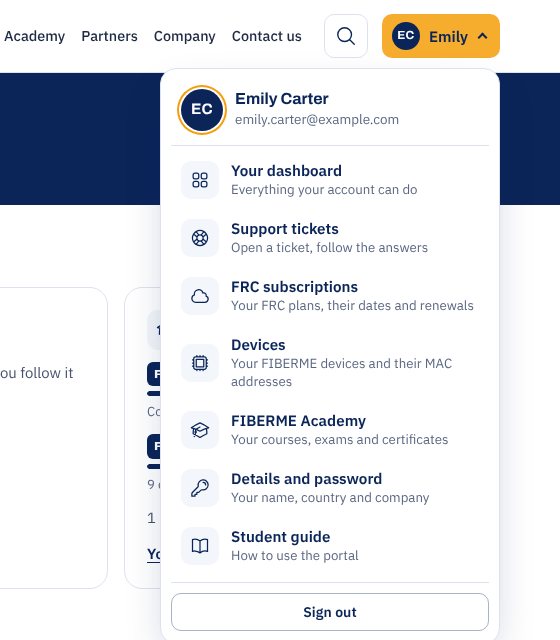
Your dashboard#
Your dashboard (fiberme.com/dashboard) is the home of your account. What do you need today? shows each part in its own box:

Your dashboard: tickets, Academy courses and devices in one place.
Open a support ticket and Your tickets: ask FIBERME technical support for help and follow the answers.
FIBERME Academy: your courses, your progress and your certificates.
Your devices: your FIBERME systems by their MAC address.
Firmware and downloads and Guides: the latest firmware and the setup guides.
Under Your account you change your details (name, the name on your certificates, country, company, phone) and your password. To change your email, write to FIBERME support.
At the top of your dashboard, How to use the portal opens this guide in a new window.
Take an Academy course#
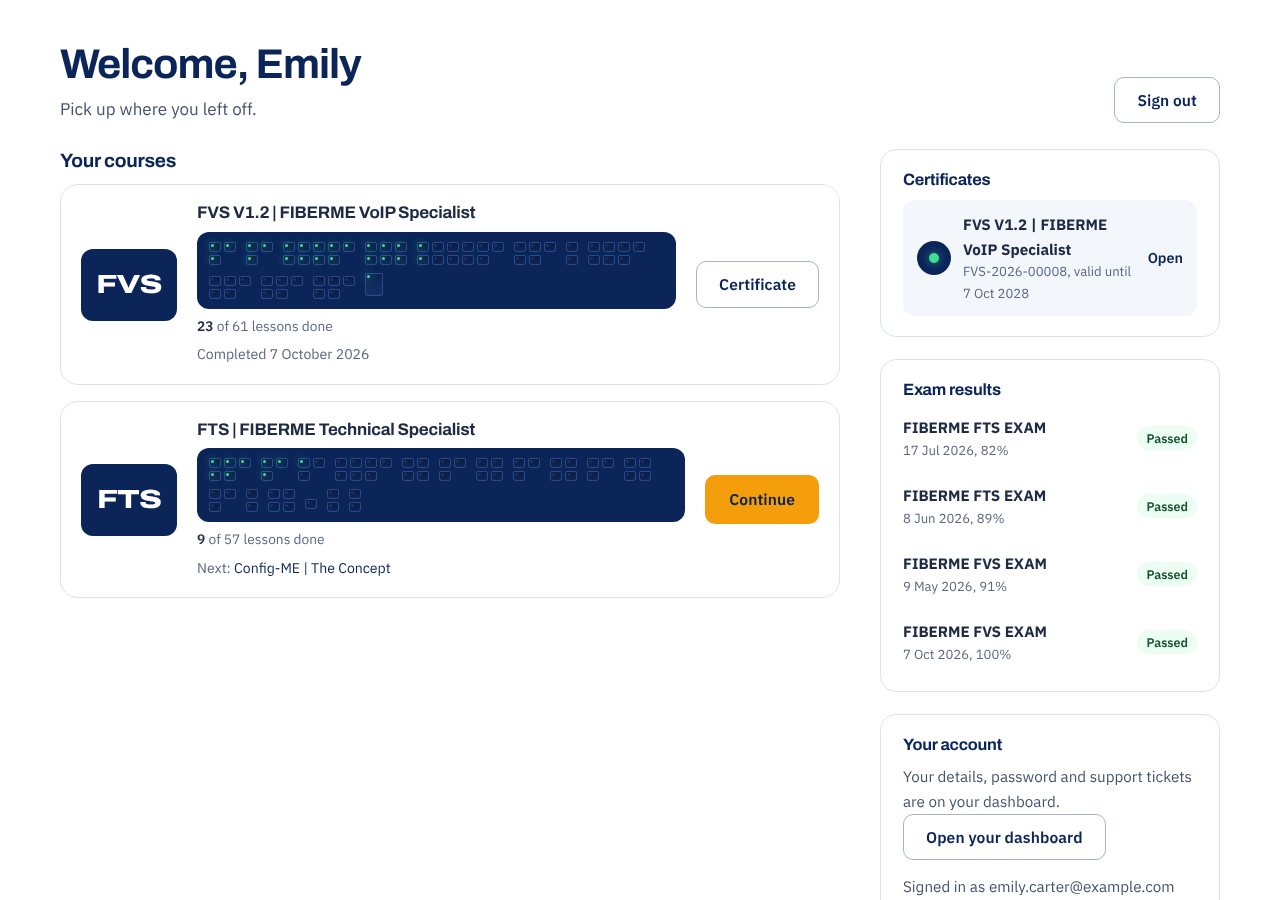
FIBERME Academy courses are free. Open the Academy and choose a course. Signed in, the Academy page starts with Your courses (with your progress and a Continue button), your Certificates and your Exam results.
The course page shows the course at a glance: every lesson is a port on the map, grouped by section, and a port lights up when you finish its lesson. The last one is the final exam.
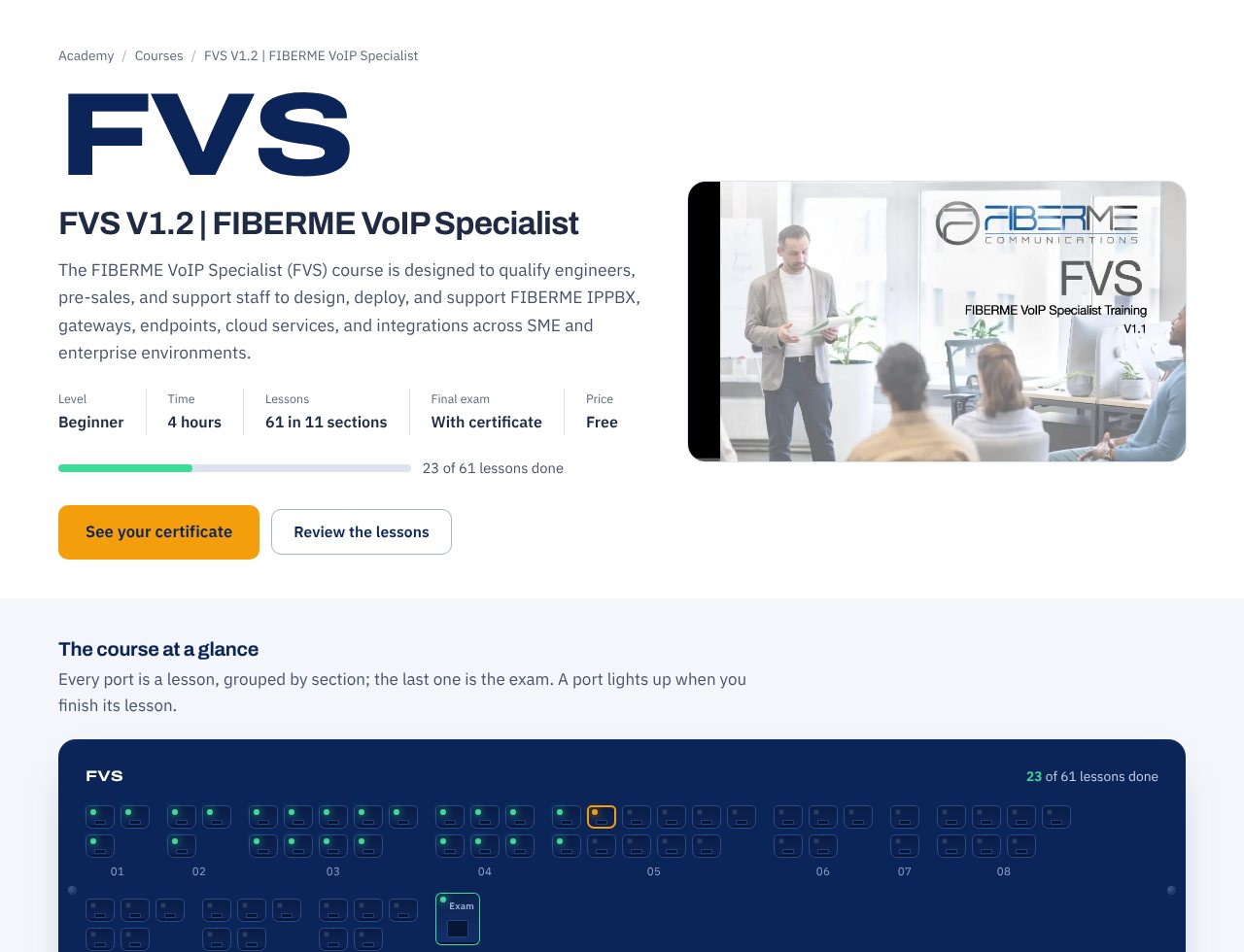
Open a lesson from the course map or the list of sections on the left.
Read the lesson. When you finish, choose Done: the lesson counts in your progress.
Choose Next for the next lesson. You can stop at any time: Continue brings you back to where you left off, on any device.

The final exam#
Each course ends with a final exam. FIBERME enrolls you in the exam and emails you the dates it is open; the exam then appears on the course page and in your courses. Students who are not enrolled can still read every lesson.
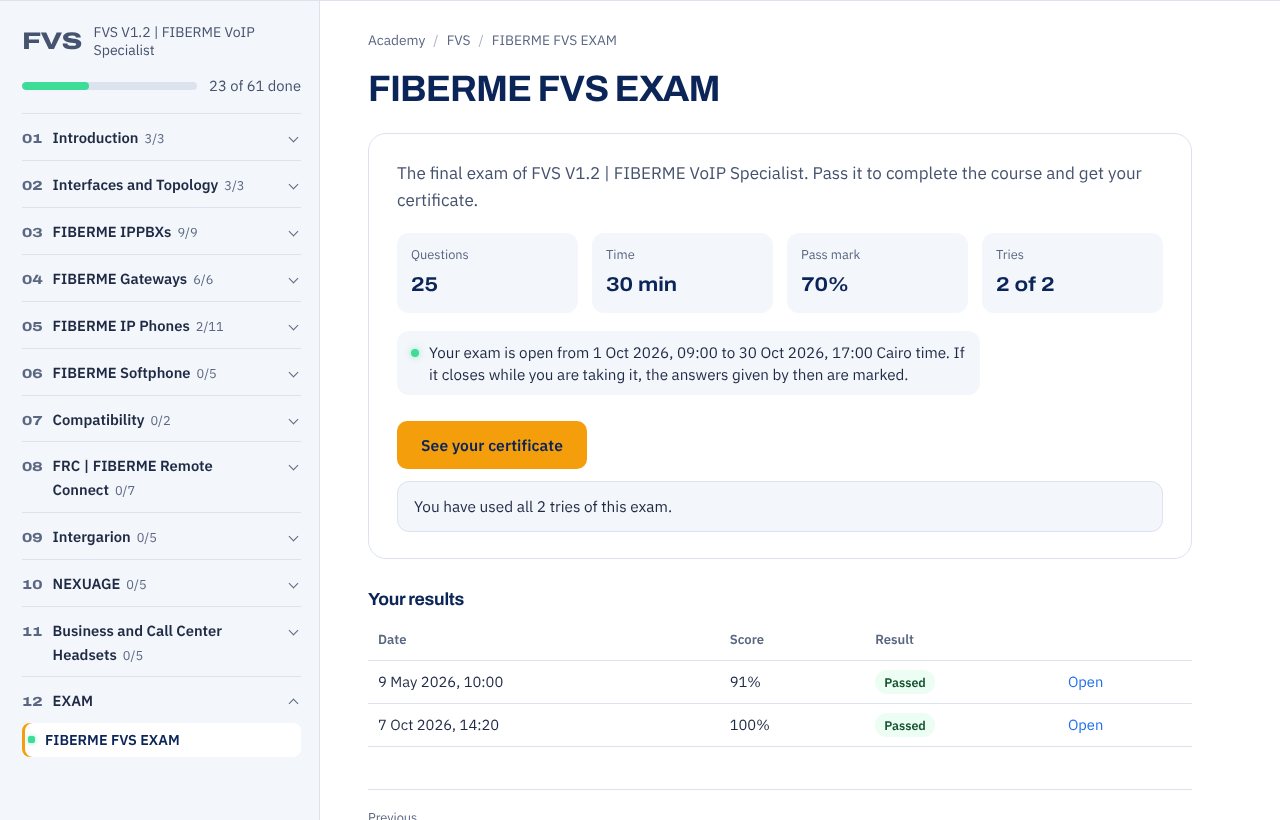
Open the exam from the course. Its page shows the number of questions, the time limit, the pass mark and how many tries you have, and the dates your exam is open.
Choose Start the exam. The clock starts when you press the button, and your answers are saved as you go.
Answer the questions. Where it says Choose every right answer, more than one answer is right.
Check your answers, then choose Send my answers. You cannot change them afterwards.
You see your score at once. If you did not pass, go back over the lessons and choose Try again (while you have tries left). Your results lists every try with its date, score and result.
Your certificate#
When you pass the final exam, FIBERME issues your certificate at once, with your name on it, and emails you its link. It is valid for 2 years, with its own certificate ID and two signatures.
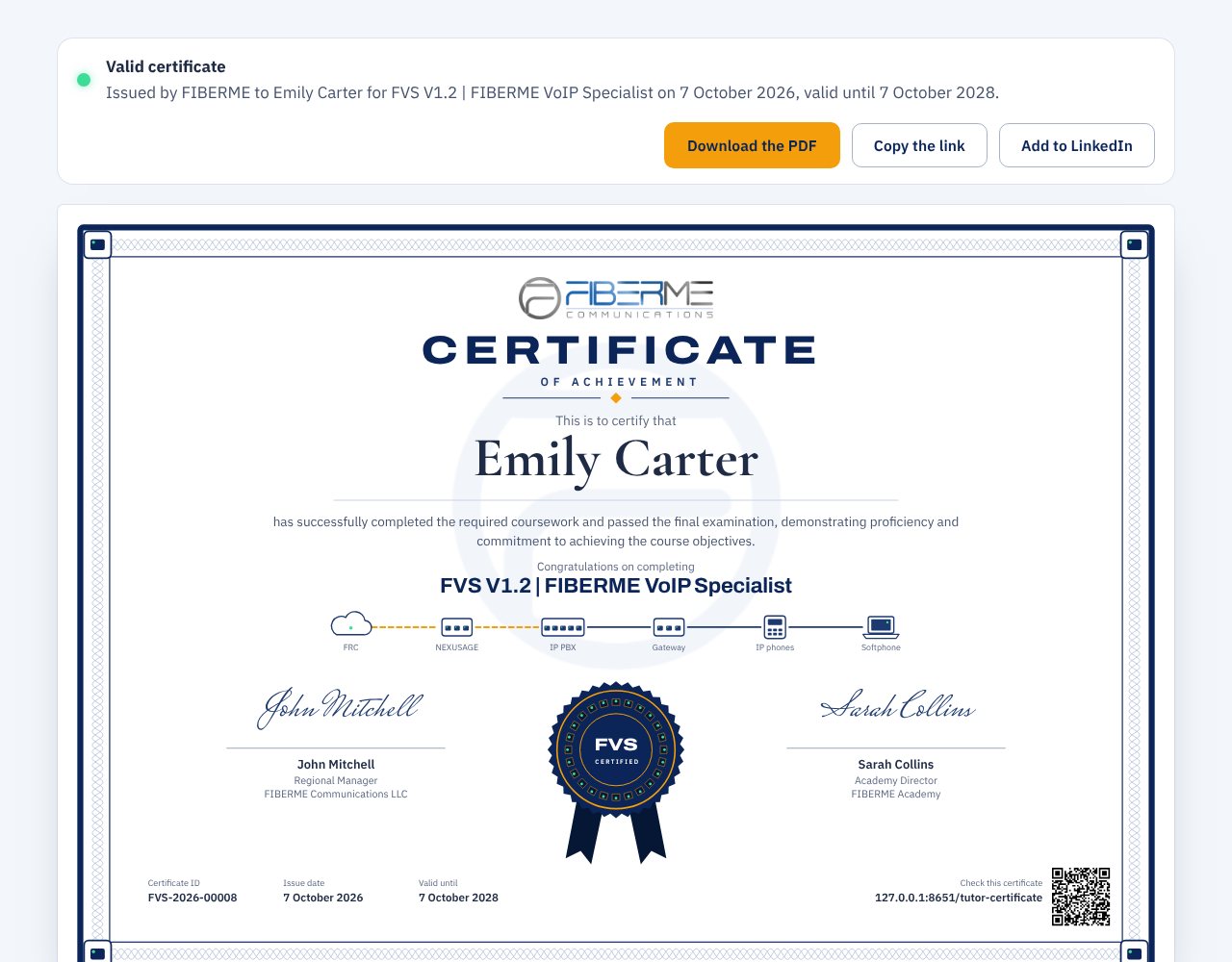
Download the PDF to print it or send it.
Copy the link to share it: anyone can check your certificate at its address or with its QR code.
Add to LinkedIn adds it to your LinkedIn profile.
Support tickets#
Choose Open a support ticket on your dashboard (or Open a support ticket).
Choose the product and whether it is hardware or software, give a title and describe the problem: what happens, what you expected and what you already tried. The firmware version and any error message help a lot.
Say how much it affects you, from A question or how-to to My phone service is down.
Add files if they help: up to 5 screenshots, logs or captures of 10 MB each.
Choose Send to technical support.
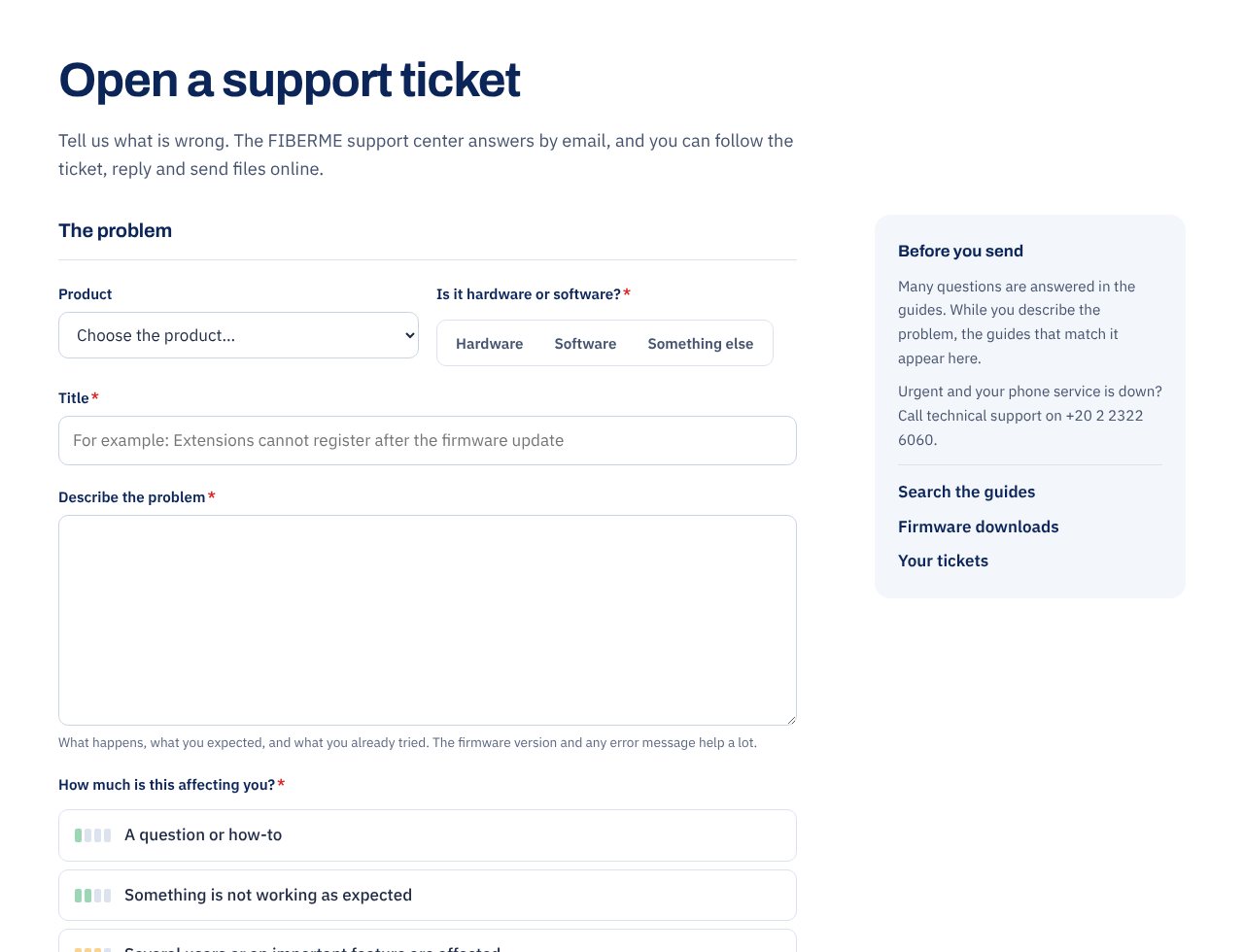
Technical support answers by email. Your tickets lists your open and closed tickets: open one to read the answers, reply and send more files.
Your devices#
Add your FCM5600, FCM7105 and FCM7115 by the LAN MAC address on their label. You then see each one with its model in your account.

Choose Add a device.
Give it a name, type its LAN MAC address (with or without ":") and, if you like, a note.
Choose Add the device. The model is filled in for you.
A device belongs to one account. A MAC address that is not in FIBERME’s list, or that is in another account, cannot be added: open a support ticket and FIBERME checks it.
The community#
With a confirmed account you can ask questions in the FIBERME Community and answer other members. Everyone can read it.
Need help?#
Open a support ticket, or use the chat at the bottom right of the website. Partner companies: see the partner portal guide.
Still stuck?
FIBERME support can look at your setup with you. Certified Partners can also ask in the FIBERME Community, and anyone can learn the systems step by step in the free courses of FIBERME Academy.