
Partner portal user guide
How FIBERME Distributors, Sub-Distributors and Resellers use the partner portal: project protection, FRC subscriptions, devices, the company profile and category, the partner certificate, the team and your partners.
On this page

The partner portal is where FIBERME Distributors, Sub-Distributors and Resellers work with FIBERME: you protect your projects, order FRC for your customers, list your devices, manage your team and your own partners, and download your partner certificate. This guide shows each part, step by step.
See the student user guide for support tickets, the Academy and your own certificates.
Sign in#
FIBERME makes your company’s owner login; there is no sign-up form for the partner portal. You get an email with a link to choose your password.
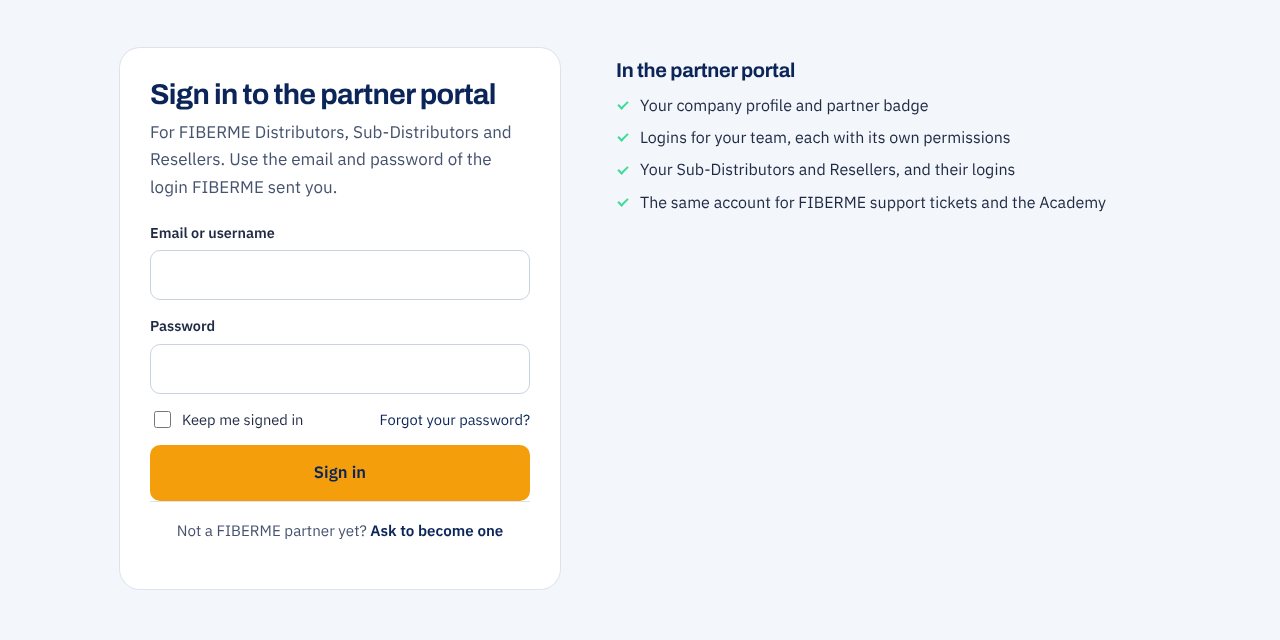
Type the email or username and the password of your login, then choose Sign in.
Forgot your password? Choose Forgot your password?: FIBERME emails you a 6-digit code to choose a new one.
Once signed in, the account menu at the top right of every page has Partner portal first.
The portal at a glance#

The overview: your company band, the tabs, and a box for each part of the portal.
The navy band at the top shows your company: its badge, its partner type and category, its partner code, its city and who it is a partner of. On the right are a small picture of your partner certificate (choose it to open the Certificate tab), who is signed in, and Sign out.
Under the band are the tabs: Overview, Projects, FRC subscriptions, Devices, Company, Category, Certificate, Team and Partners (or Resellers for a Sub-Distributor). A user of your team sees only the tabs the owner gives them.
At the end of the tabs, How to use the portal opens this guide or the student guide in a new window. It is also in the account menu at the top right of every page.

The Overview sums up each part, with what needs you first: projects that need your update, FRC subscriptions that end soon, your category and what keeps it, your devices, your team and your partners.
Project protection#
Register a project with FIBERME and, once approved, it is protected for your company: FIBERME supports your quote and not another partner’s for that end user.
Send a protection request#
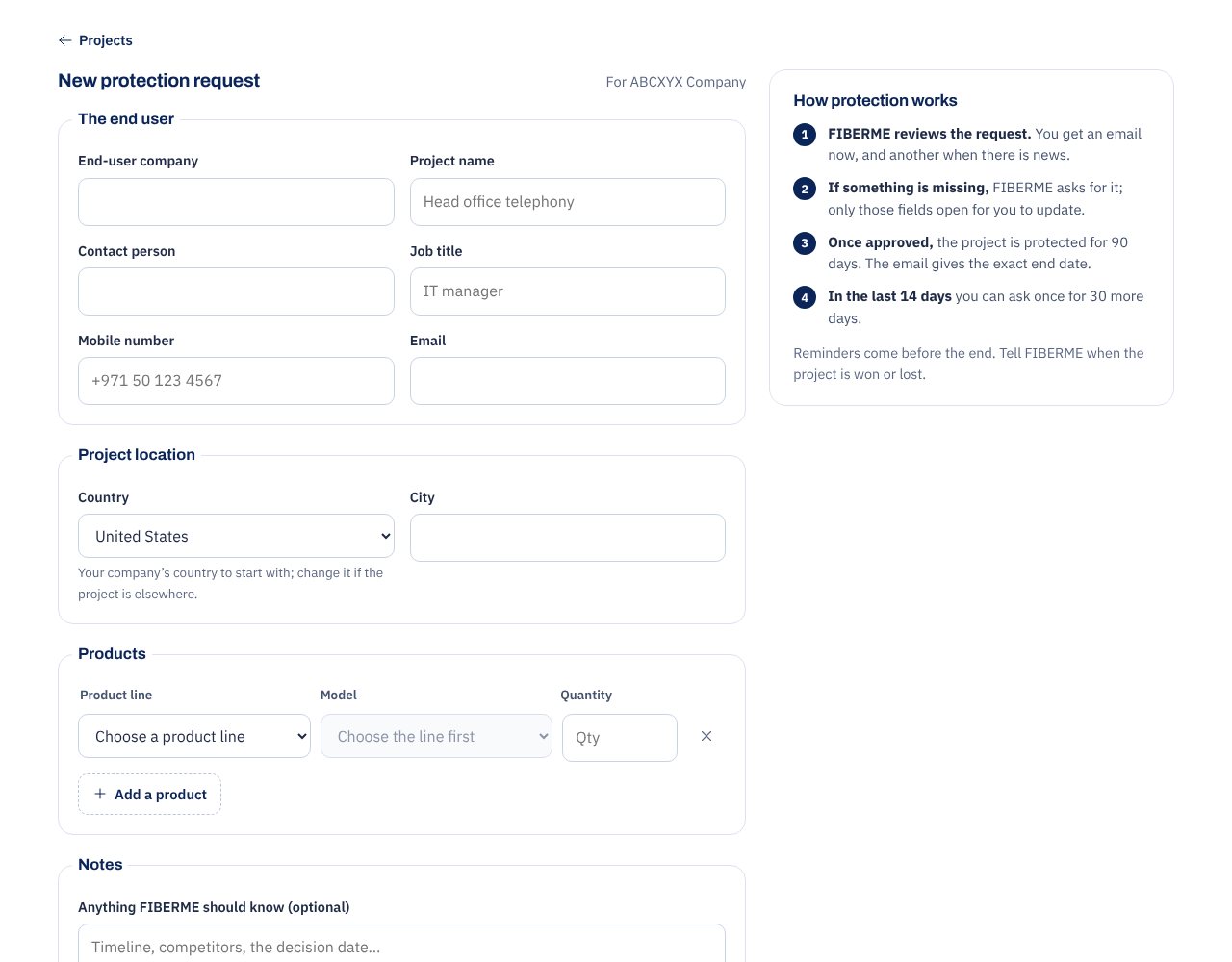
On the Projects tab, choose New request.
Under The end user, type the end-user company, the project name, the contact person with their job title, mobile number and email.
Give the project location (country and city). Your company’s country is filled in; change it if the project is elsewhere.
Under Products, add each product line, model and quantity (Add a product adds a line).
Add notes for FIBERME if you like, then choose Send the request.
Follow your projects#

The Projects tab lists your company’s projects and the approved projects of the partners under you, with filters: Needs your update, With FIBERME, Protected and Closed. Each project shows its number (PP-…), its status and its dates.
Submitted: FIBERME reviews the request. You get an email now, and another when there is news.
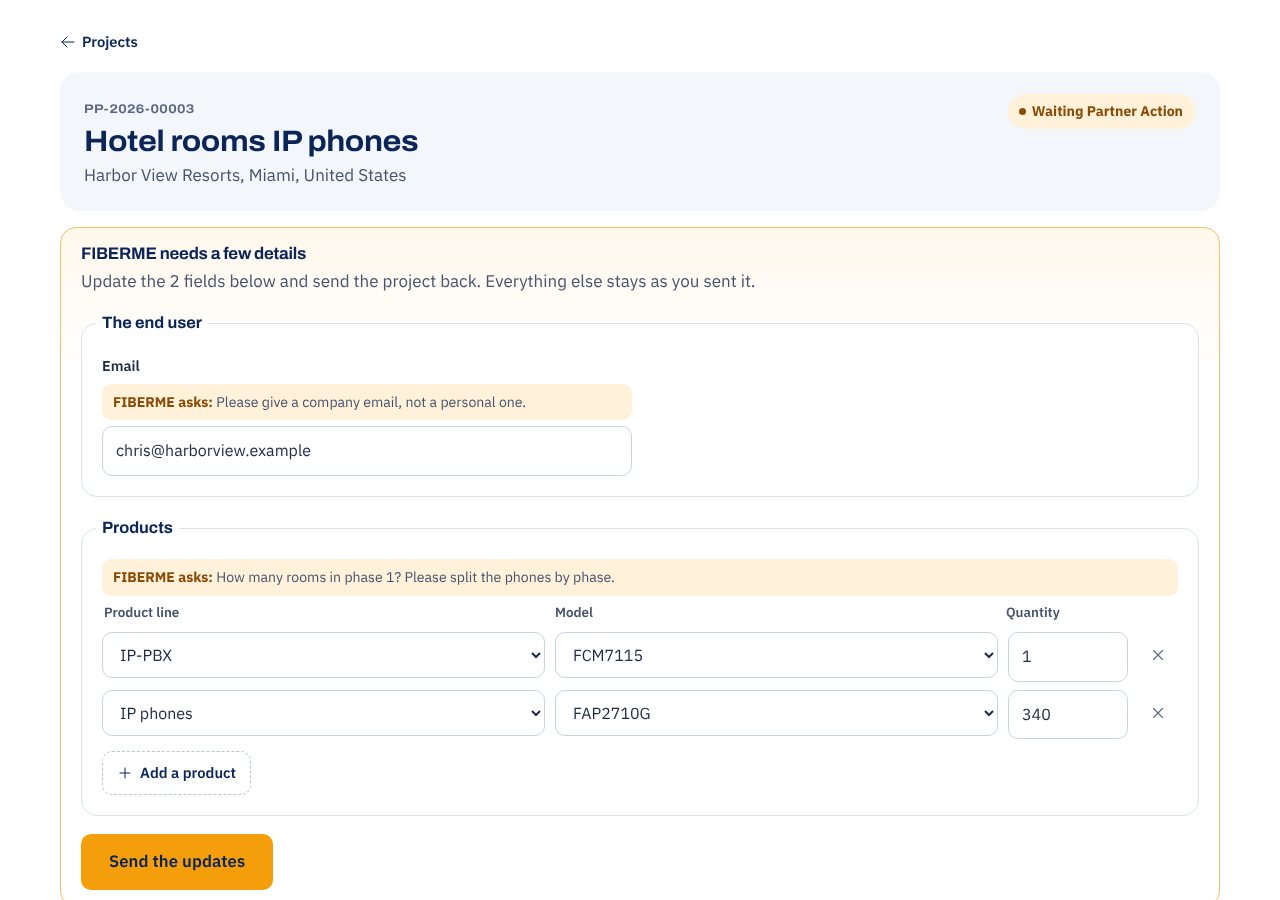
Waiting Partner Action: FIBERME needs a few details. Open the project: only the fields FIBERME asks about are open, each with FIBERME’s question. Update them and choose Send the updates.
Approved: the project is protected for 90 days. The email gives the exact end date.
Expired Soon: the protection ends in a few days. Reminders come before the end.
Won, Lost, Rejected, Expired: the project is closed. If the project is still open after a rejection or the end, you can send a new request.
Extend or close a protection#
In the last 14 days of a protection you can ask once for 30 more days: open the project and choose Ask for 30 more days. FIBERME answers by email.
When the project ends, tell FIBERME: under Won or lost? choose We won it (with an optional note) or We lost it (with the reason). This closes the protection.

FRC subscriptions#
The FRC subscriptions tab lists the FRC plans your company bought, with the companies that use them, their FRC domains and dates. You pay your partner price.

Order FRC for a customer#
Choose Order FRC.
Choose the plan and how long. Your partner price and what you save show on each plan.
Choose the product, give the device a name and type its FRC domain, as it is set on the product (System › FRC).
Under End user, type the company that uses the solution and its contact email. FIBERME emails them the plan, its dates and reminders with their own price; your partner price stays between you and FIBERME.
Pay by card, or choose offline payment: FIBERME emails the bank details and an invoice, and FRC starts once the payment arrives.

FIBERME activates FRC and emails you, usually within one working day. Before a plan ends, FIBERME emails the person who ordered and the end user; Renew starts the new period the day after. Details opens the plan’s order.
Devices#
Add your company’s FCM5600, FCM7105 and FCM7115 by the LAN MAC address on their label. Every login of your company sees these devices, each with its model, its FRC domain and its FRC subscription.

Choose Add a device.
Give it a name (for example the customer and site), type its LAN MAC address and, if you like, a note.
Choose Add the device. Then Order FRC or Renew FRC for it from its card. Change edits its name and note, or removes it from the list.
Company profile#
The Company tab shows your company as FIBERME has it: name, partner type, category, partner code, who you are a partner of, country, city, address, phone, email, website and the owner login.

Under Contact details you change the phone, company email, website, city and address, then choose Save the details. To change the company name, type or country, write to your FIBERME contact.
Category#
Your category follows the FIBERME Academy certificates your people hold, and changes the same day a certificate is issued:
Standard: every FIBERME partner starts here. No training or exam is needed.
Certified: FVS and FTS are passed in your company, by one person, or FVS by one person and FTS by another.
Specialist: one person in your company holds FVS, FTS and FTE.

The Category tab shows your category, until when it holds, how to reach the next one, and Who counts for your company: everyone with a FIBERME account on your company’s email domain, and the logins of the portal, with their certificates. When the certificates behind a category end, it goes down the next morning, so renew them in time.
Partner certificate#
Your company has a FIBERME partner certificate with your partner type, category and country, a certificate ID and dates. Its picture is in the band at the top of the portal.

Download the PDF to print it, frame it or send it to your customers.
Copy the check link: anyone can check the certificate at that address or with its QR code.
The certificate shows your company as it is today: when your category changes, download it again. Its ID and dates stay the same.
Renew your certificate#
In the last 3 months before it ends (or after it ended), the Certificate tab shows Ask to renew for one year. Add a message for FIBERME if you like and send it; FIBERME answers by email.
Team#
The owner of the company login adds up to 3 users. Each user gets only the parts of the portal you tick:
View resources: datasheets, battle cards, pictures and videos.
Submit protection: ask FIBERME to protect a project, and follow the company’s projects.
Create tickets: open and follow the company’s support tickets.
Pay for FRC: see FRC partner prices and pay online.
View payments: see the company’s payments and invoices.

Under Add a user, type their name and work email and tick what they can use.
Choose Add and send the email. They get an email to choose a password. An existing FIBERME account with this email is linked.
Change next to a user changes what they can use. There you can also suspend their login, send the welcome email again, or remove them from the company.
Your partners#
Distributors add Sub-Distributors and Resellers; Sub-Distributors add Resellers. Each partner gets its own owner login and its own portal.
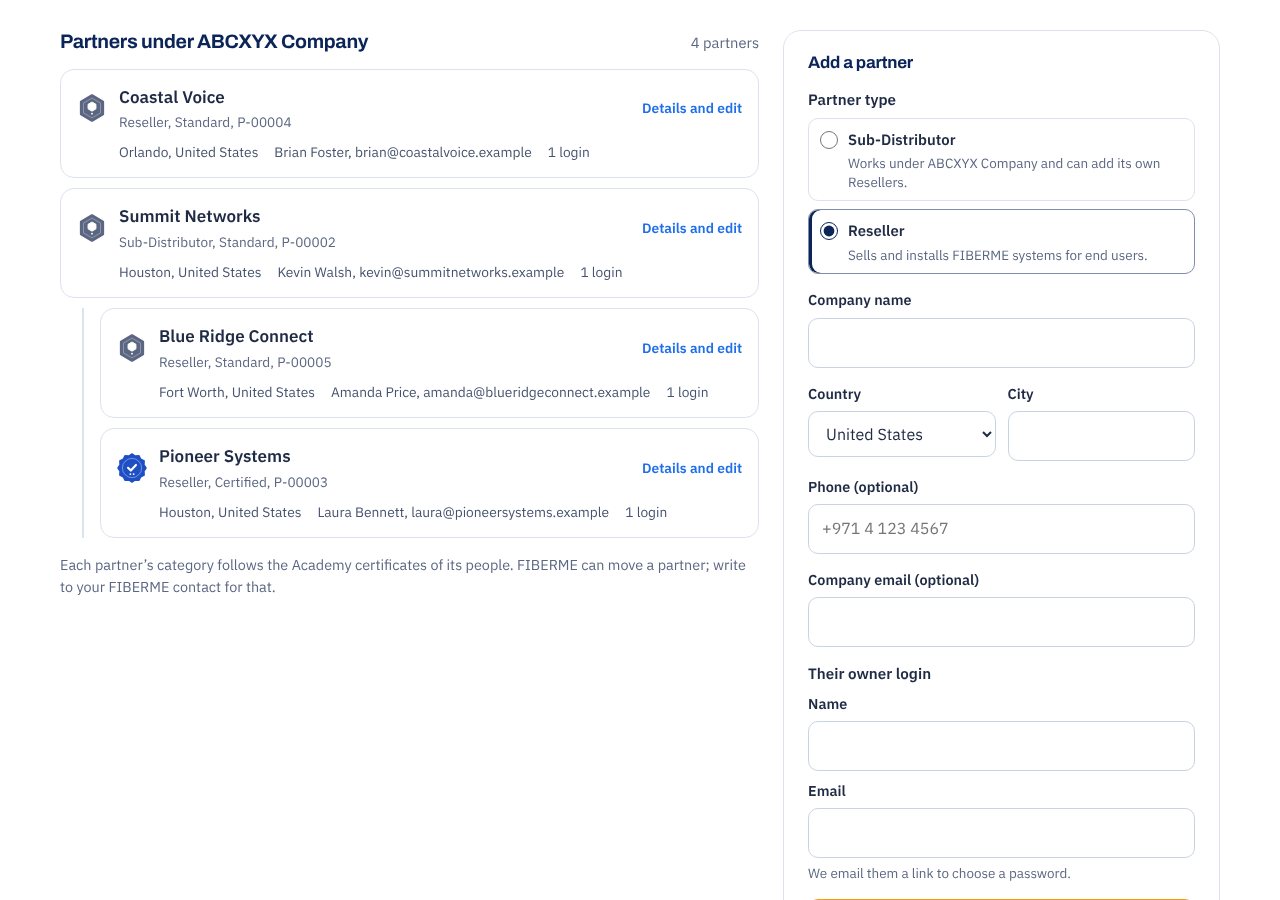
On the Partners tab, under Add a partner, choose the partner type.
Type the company name, country and city (phone and company email are optional).
Type the name and email of their owner login, then choose Add the partner. We email them a link to choose a password.
Details and edit opens a partner: its details, its logins, its category and its own partners. You can update its details; its type and place are FIBERME’s, and its category follows its people’s certificates. The projects of your partners appear on your Projects tab once approved.
Sales and marketing resources#
Datasheets, battle cards, product pictures, social media posts and videos for FIBERME partners are added to Sales and marketing, ready to view and download.
Need help?#
Write to your FIBERME contact, open a support ticket from your account, or use the chat at the bottom right of the website. For tickets, the Academy and your own certificates, see the student guide.
Still stuck?
FIBERME support can look at your setup with you. Certified Partners can also ask in the FIBERME Community, and anyone can learn the systems step by step in the free courses of FIBERME Academy.