
How to integrate FAP27xx IP Phone series with Yeastar P-Series LDAP
To establish connectivity from the 27xx ip phone, it is necessary to configure LDAP Server on 27xx ip phone . This will enable the 27xx ip phone to access to Yeastar P-Series Contacts.
On this page
IPPBX : Yeastar P-Series
IP : 192.168.1.1
IPPhone : FAP27xx
IP: 192.168.1.100
1- IPPBX Yeastar P-Series#
Login into Yeastar P-Series web GUI.
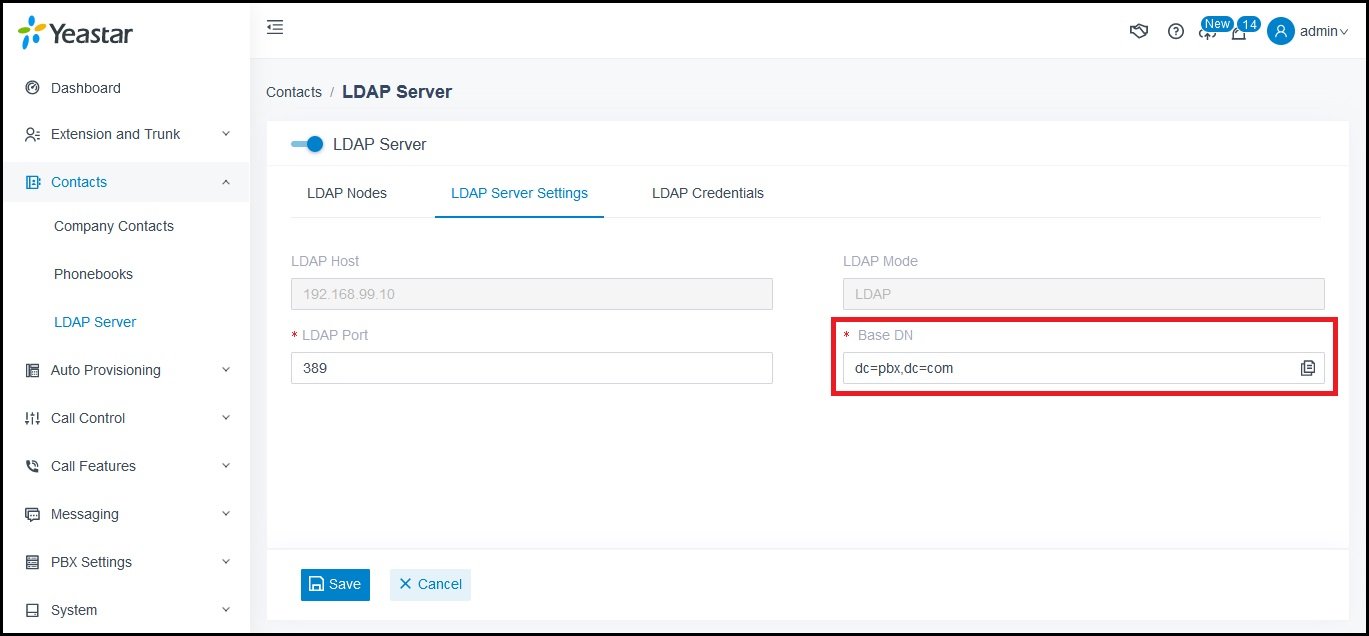
On Yeastar P-Series web GUI, navigate to Contacts -> LDAP Server ->LDAP Server Settings
Enable active on LDAP Server
Nivgate to Copy Base DN : dc=pbx,dc=com
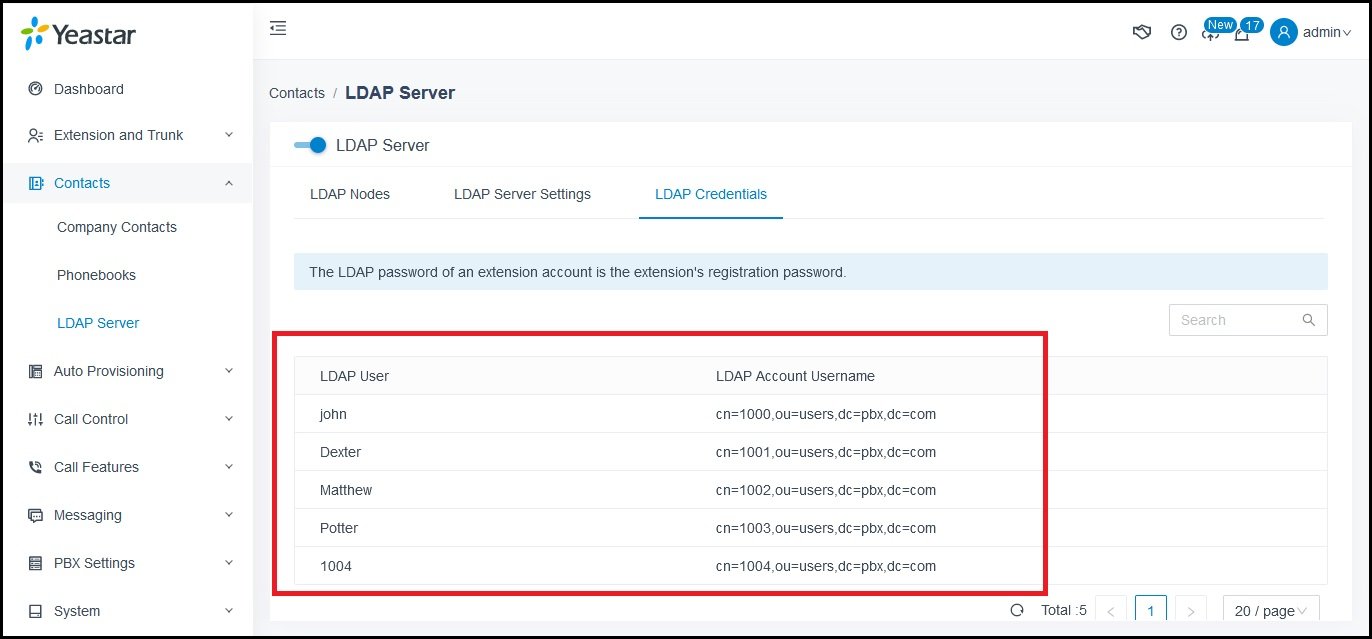
Navigate to LDAP Credentials
– Copy any Account Username
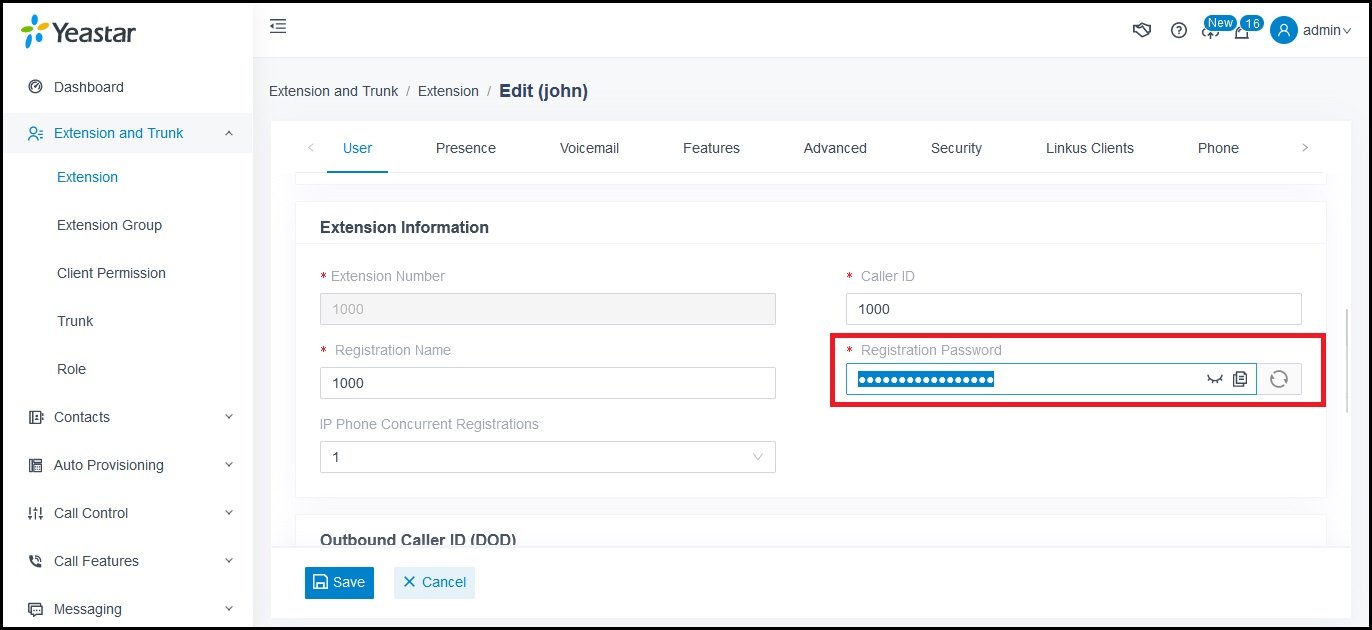
Navigate to Extension and Trunk ->Extension
– Take copy to the Registration Password From the extension previously selected.
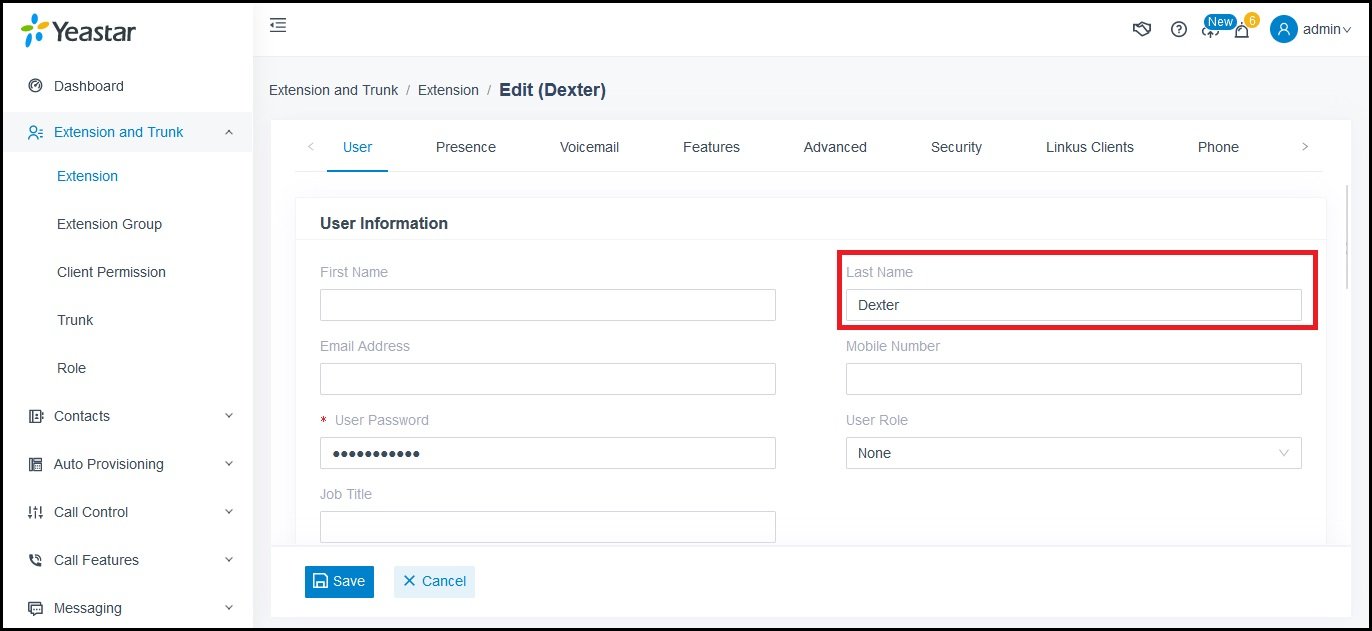
– Write full Name in Last name
2- IP Phone FAP27xx#
This phone has the capability to store 4 LDAP entries.
On FAP27XX web GUI, navigate to Phonebook
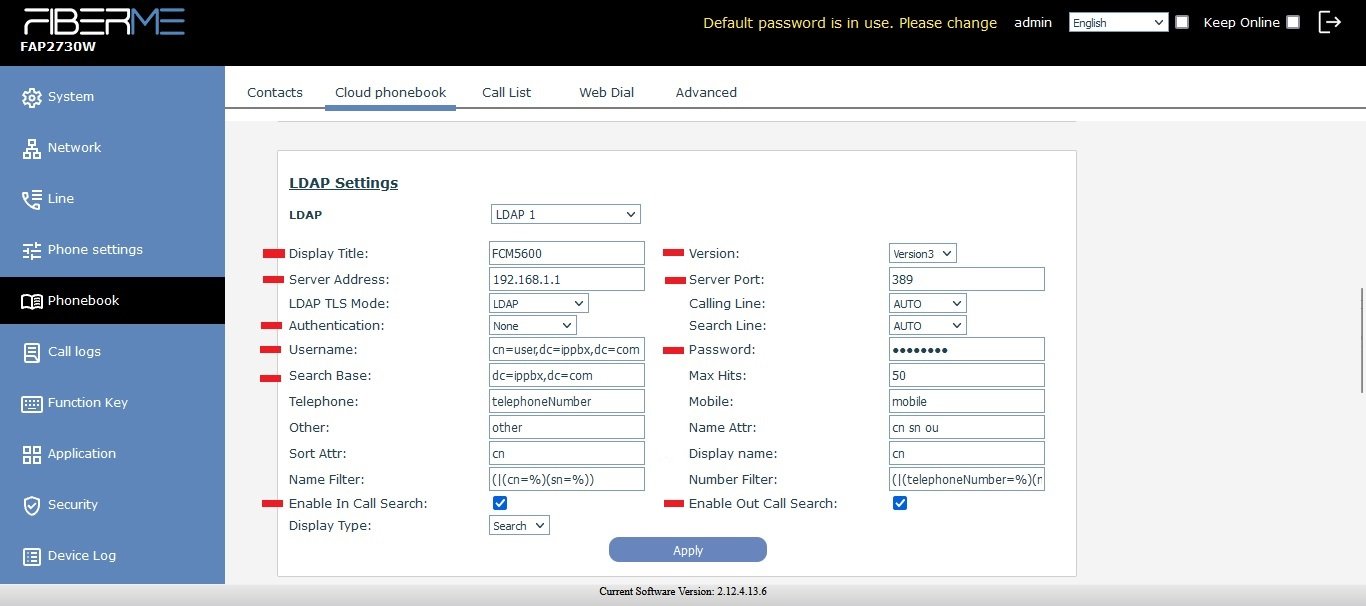
Add some credentials here.
Display Title: Yeastar
Version: Version3
Server Address: 192.168.1.1 \\ IP Yeastar
server port: 389
Authentication: None
Username: ccn=1000,ou=users,dc=pbx,dc=com \\ Account Username
Search Base: dc=ippbx,dc=com \\ Base DN
Password: Registration Password From the extension
Chick Mark : Enable In Call Search \\ This feature allows the access to LDAP during incoming calls.
Chick Mark : Enable Out Call Search \\ This feature allows the access to LDAP during outcoming calls.
How to show this contact information on phone#
– FAP2710 series#
1- Press in contact button .

2- Navigate to LDAP

3- All contacts will appear here.
– FAP2730\40 series#
1- press in contact button .

2- Navigate to LDAP
3- Navigate to FCM5600
4- All contacts will appear here.
Still stuck?
FIBERME support can look at your setup with you. Certified Partners can also ask in the FIBERME Community, and anyone can learn the systems step by step in the free courses of FIBERME Academy.