
To establish cloud-based communication between CUCM and NEXUSAGE, the extension must be properly registered in NEXUSAGE. Once the registration is completed, the extension can be accessed and used remotely through FRC.
TOPOLOGY #

IN CUCM #
In Cisco CUCM, the MAC address of the IP phone must be added from the Phones page. To do this, follow the steps below:
– Navigate to Device → Phone
– Select Phone Type: Third-party SIP device (Basic)
– Next

Navigate to NEXUSAGE and obtain the MAC address (e.g., C074AD15035C).
Alternatively, you can use any 12-digit MAC address (e.g., 000000000000).
Enter the MAC address in this format to ensure compatibility with CUCM:
C074AD15035C ✅
C0:74:AD:15:03:5C ❌
CUCM requires the MAC address in a continuous 12-digit hexadecimal format without separators.
In the Third-party SIP Device (Basic) page, click Add New, then configure the following:
– MAC Address → Enter C074AD15035C
This identifies the device that will be registered and linked to the extension.
– Description → Automatically generated
CUCM automatically prepends “SEP” to the MAC address to form the device name.
– Device Pool → Default
Defines region, date/time settings, and other system-level configurations for the device.
– Phone Button Template → Third-party SIP Device (Basic)
Determines how line buttons and features are assigned to the device.
– Owner → Anonymous
Specifies the associated user. “Anonymous” is used when no specific user is assigned, and this field will be updated later to define the actual user.

– Device Security Profile → Third-party SIP Device (Basic) – Standard SIP…….
Defines the security settings used by the device, including authentication and transport protocols. This option ensures compatibility with standard SIP configurations.
– SIP Profile -> standard SIP Profile
Specifies the SIP behavior and signaling parameters used by the device for communication.
– Click save

– Navigate to User Management → End User
This section is used to manage users in CUCM and associate devices and extensions with specific users.
– Add new

– User ID → 2121 (extension number)
Used as the unique user identifier in CUCM
– Password → 2121 (extension password)
Required for user authentication.
– Confirm Password → 2121 (extension password)
Ensures the password is entered correctly.
– Last Name → DEXTER
Required field to define the user name.
– Digest Credentials → 2121 (extension password)
Used for SIP authentication between NEXUSAGE and CUCM.
– Confirm Digest Credentials → 2121 (extension password)
Confirms the digest credentials for proper authentication.

– Click Device Association
Opens the device association page to link the device with the user

– Click Find
– Select IP-Phone you need
Select the device you want to associate with the user.
– Save selected/change

– Go back
You will find IP-phone you added

– Back to → Phone
Edit phone
– Oner → user
Specifies that the device is assigned to a user.
– Oner user ID → 2121
Assigns the device to the corresponding user ID.

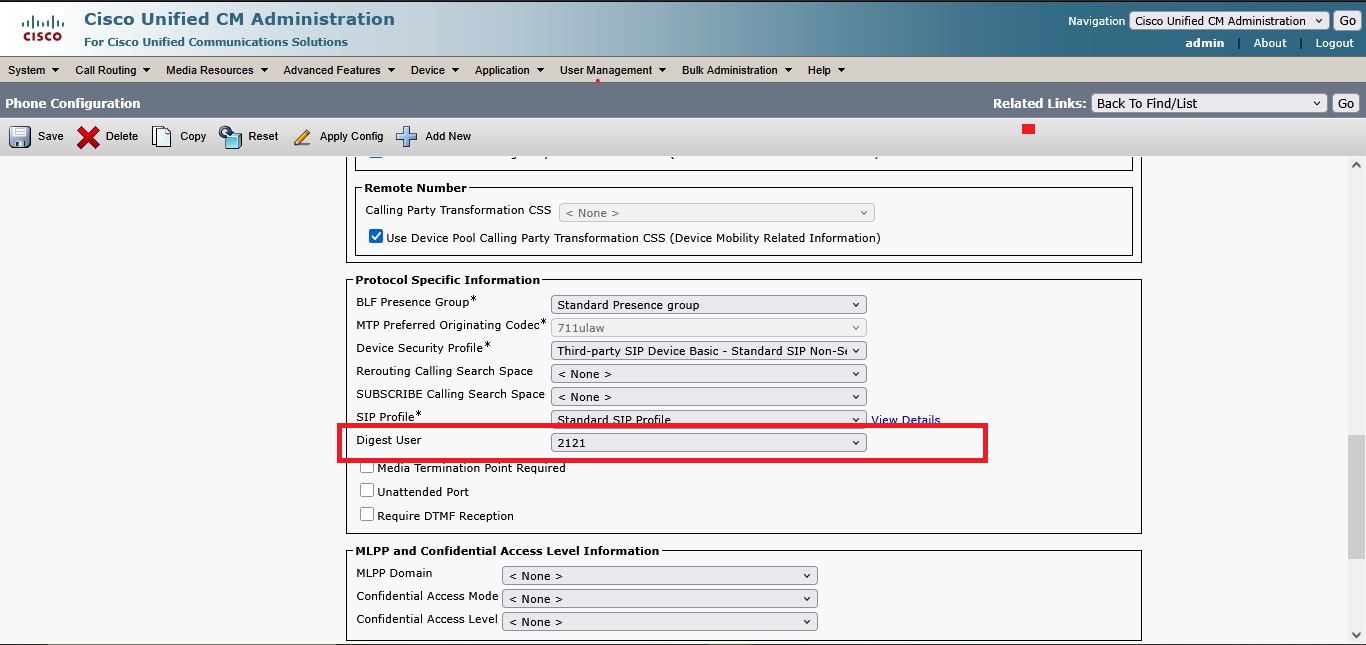
– Digest User → 2121
Specifies the user used for SIP digest authentication.
– Click save
– Navigate to LINE [1]
to add number of extension to IP-Phone

Write your Extension
– Directory Number →2121
Specifies the extension number assigned to the device.
– Description →2121
Defines a label used to identify the extension.
– Alerting Name →2121
Specifies the name displayed when the device receives a call.

– Write Display (Caller ID) →DEXTER
Specifies the name displayed as the caller ID for outgoing calls.
– Select Caller Name
Enables displaying the caller name on the receiving device.
– Select Dialed Number
Enables displaying the dialed number on the device.
– Click save

– Click on Associate End Users to associate the extension with a user

– Select the required User ID, then click Add Selected.

IN NEXUSAGE #
– Navigate to NEXUSAGE→Connections →Add Connections
– Connection Name : CUCM
Used to identify the PBX connection. This value can be changed later.
– IP Address : 192.168.1.10
Specifies the IP address of CUCM or the IP-PBX.
– Transport : UDP
Defines the transport protocol used by the extension (UDP/TCP/TLS). By default, UDP is used.
– Port : 5060
Specifies the SIP protocol port (e.g., 5060 or 5080). By default, 5060 is used.
Ensure that if the Transport is changed, the Port may also need to be updated .
– Save

– Navigate to NEXUSAGE→Extensions →Add Extension
– Name : DEXTER
Specifies the extension name. This value can be changed at any time.
– Extension Number : 2121
Defines the extension number created in CUCM.
– Connection :CUCM
This is the connection created earlier in NEXUSAGE using the CUCM IP address.
(To change the connection, the extension must be deleted and recreated in NEXUSAGE)
– Password: DEX@2107
Defines the SIP password configured for the extension.
– Concurrent Registration : 1
Specifies the number of devices allowed to register this extension. This value can be changed at any time.
– Save

– Navigate to NEXUSAGE→FRC
– Copy Domain : yourmacaddres.x.fiberme.cloud
Used to configure the extension for cloud access.
– Note: Transport is TLS
Specifies the transport protocol used for FRC communication.
– Note: Port is 5162
Specifies the port used for FRC communication.

NOW: Ensure that the extension is registered in CUCM.
If the extension does not show as Connected, there may be an issue.
Review the configuration steps and verify network connectivity with CUCM

Finally, use this extension in your IP-Phone, Soft Phone in mobile (FIBERME SWING LITE) , Soft Phone in PC (FIBERME SWING)
You will need
- Number of extension: 2121
- Sip password: Dex@2107
- Domain :
yourmacaddres.x.fiberme.cloud - Transport: TLS
- Port: 5162