
How to Install Nexusage on VirtualBox Oracle
To establish cloud-based access to your extensions from any IP-PBX, Nexusage can be installed and configured on VirtualBox Oracle. This deployment enables the extensions to be used remotely through FRC.
On this page

In VirtualBox Oracle#
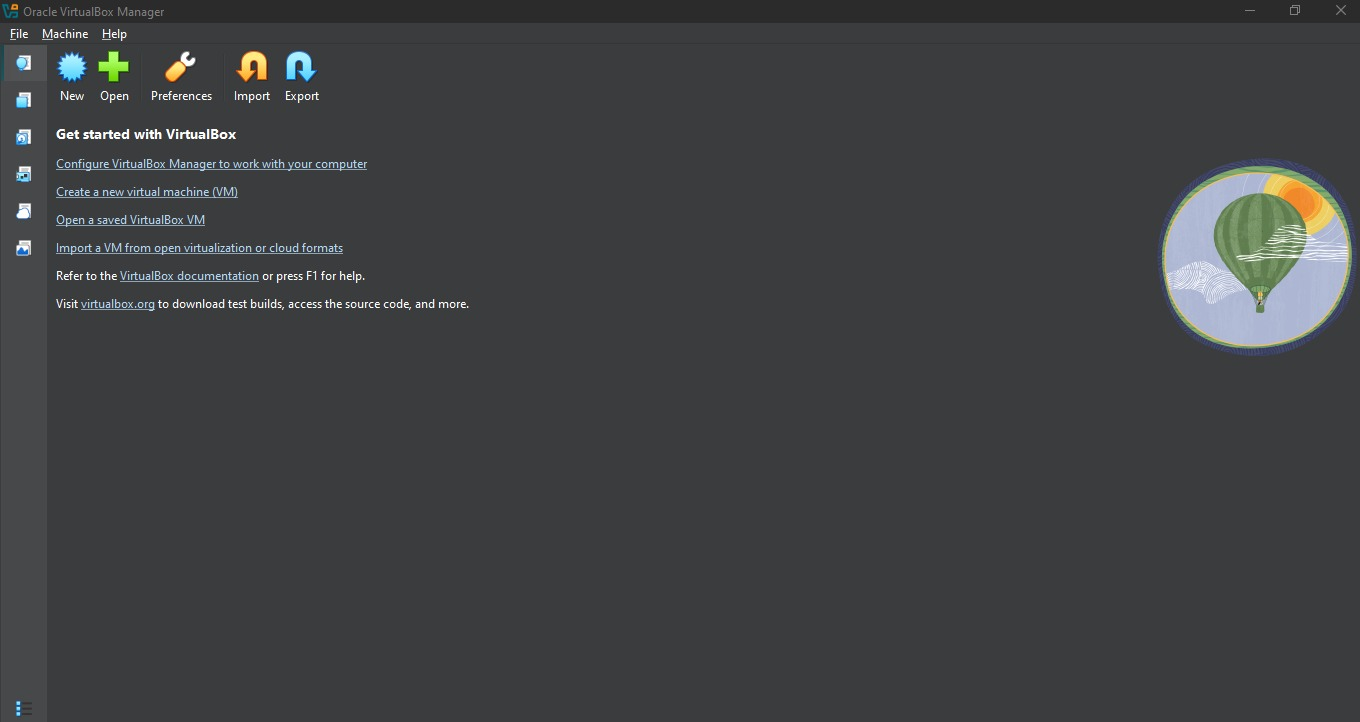
Open VirtualBox Oracle
Create new VM
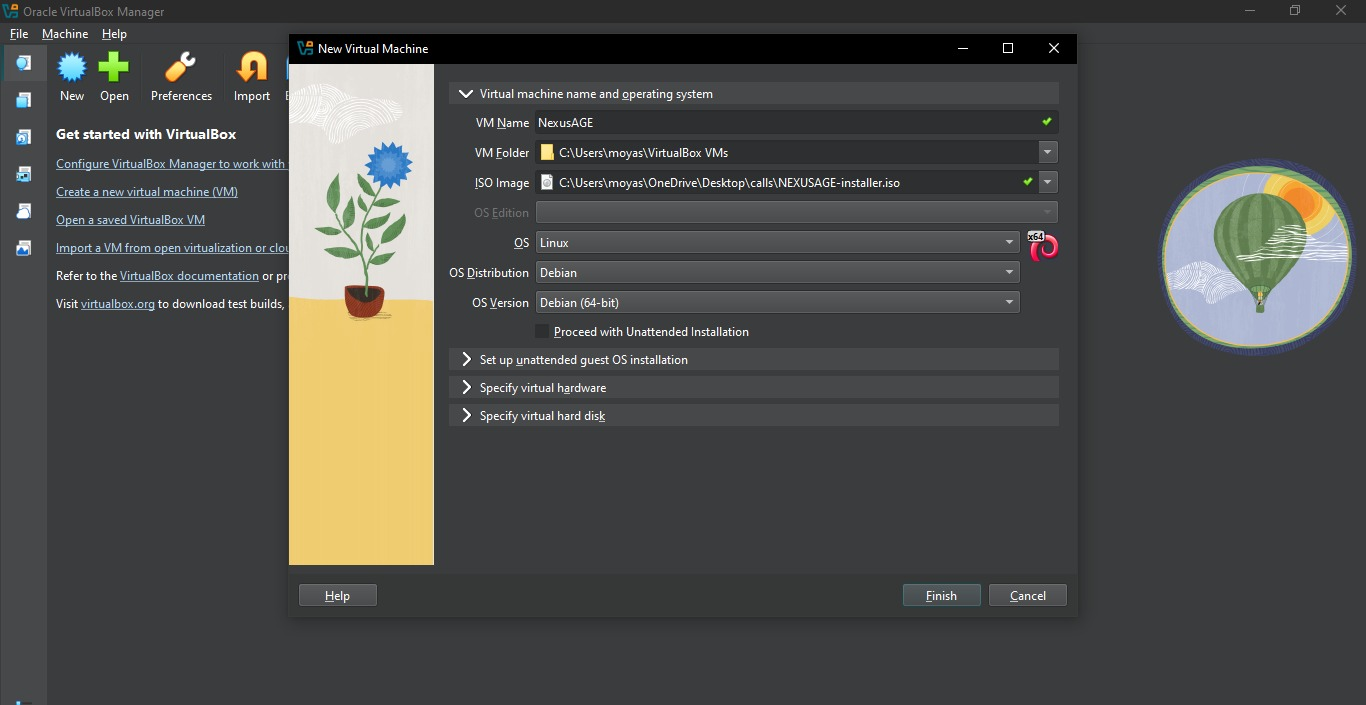
Set the location of ISO
Disable processed with Unattended installation
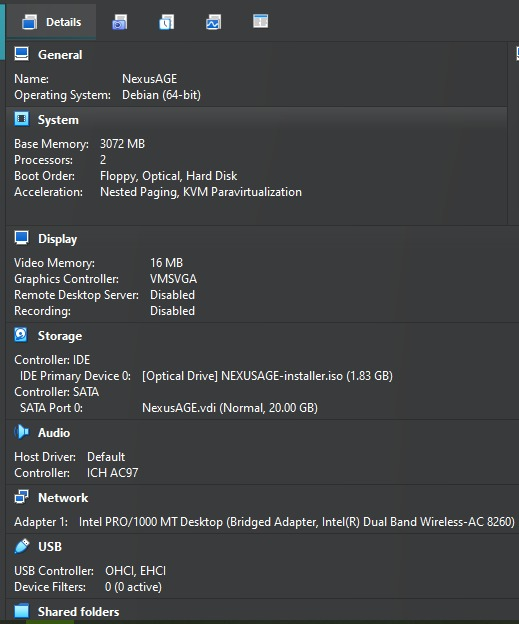
Disks
Disk size (GiB): Minimum 16GB
Memory (RAM)
Memory (MiB): minimum 2GB
CPU – Network
Choose what you need
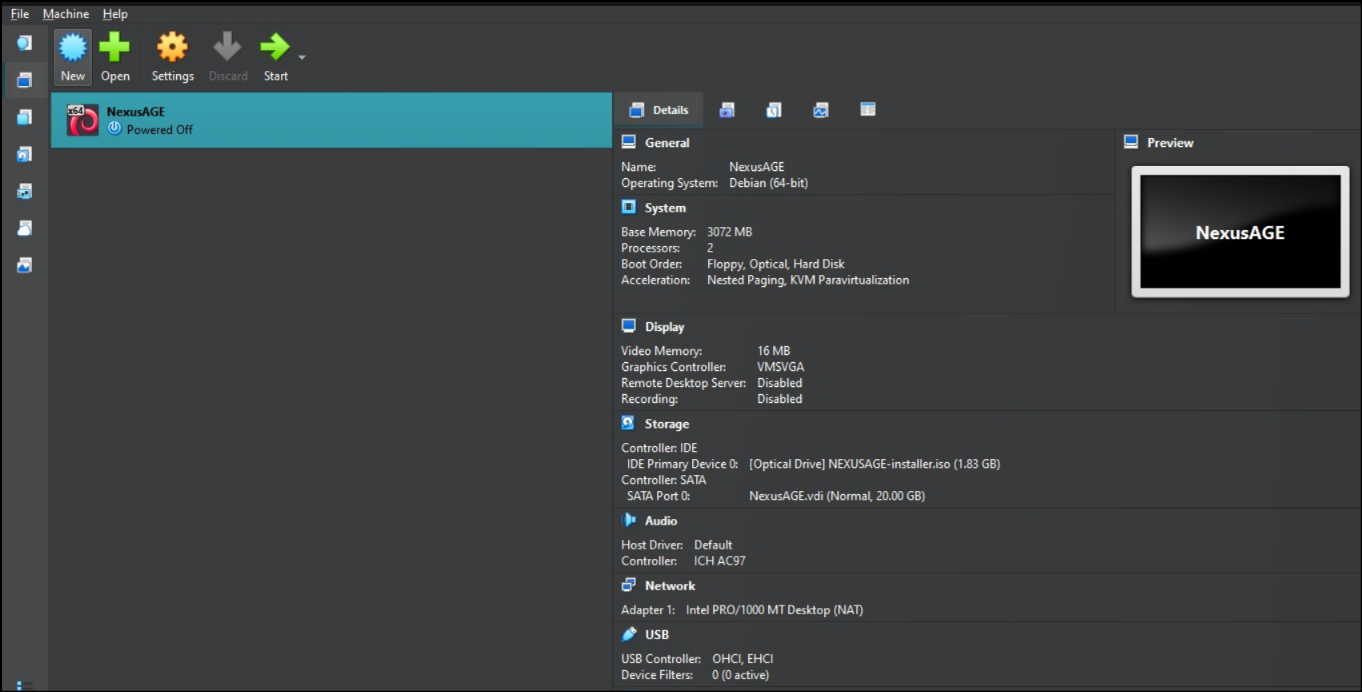
In NEXUSAGE#
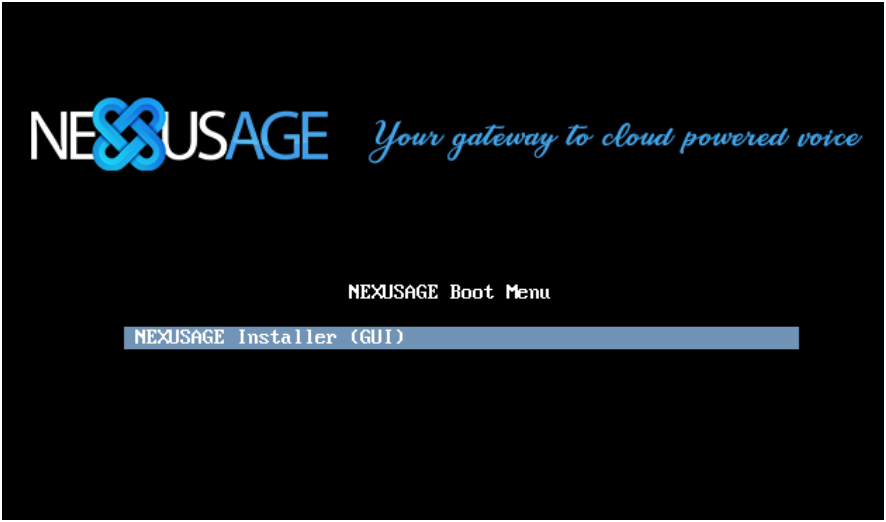
After power on the VM
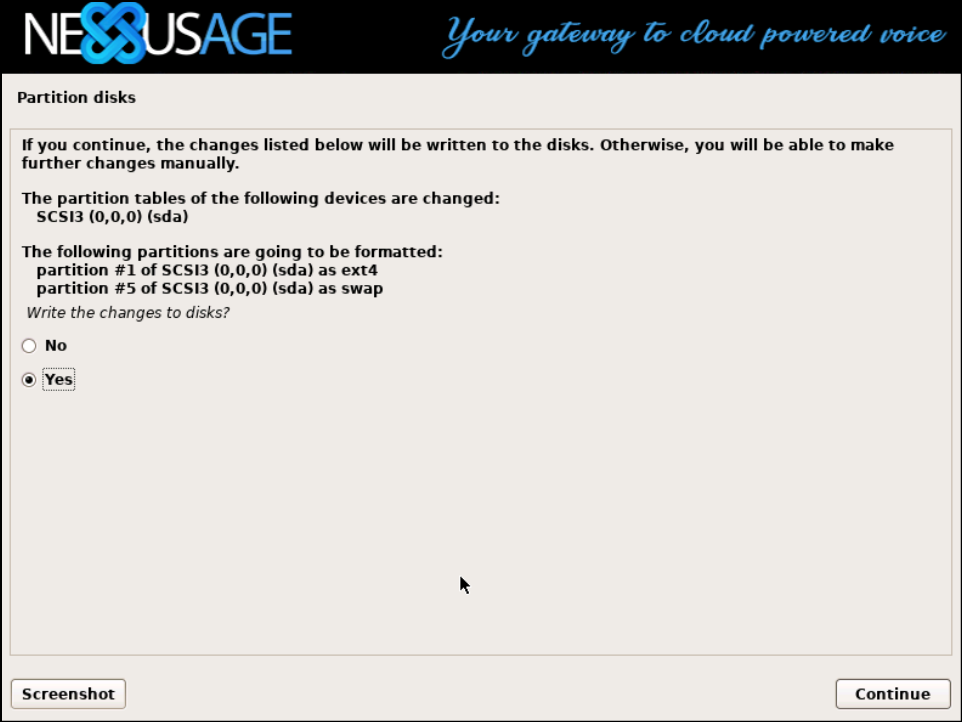
will ask you about the hard disk
Choose: Yes
At the end, it will display the access credentials and network settings
Default username and password
Username: admin
Password: Admin@123
Ethernet (DHCP)
IP – subnet mask – gateway – DNS
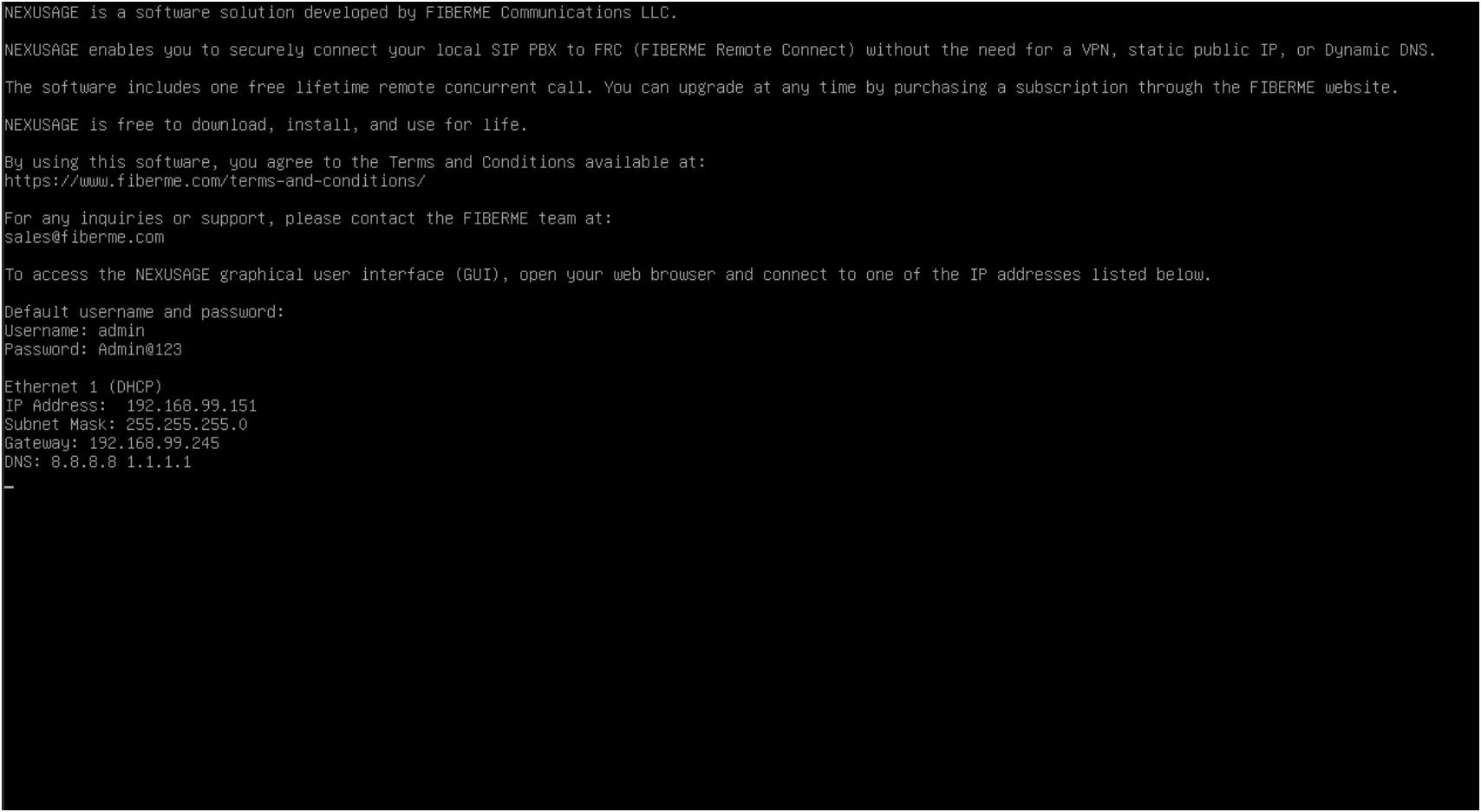
To login to your NEXUSAGE UI, open the displayed IP address on your browser: https://youripaddress:8090

Still stuck?
FIBERME support can look at your setup with you. Certified Partners can also ask in the FIBERME Community, and anyone can learn the systems step by step in the free courses of FIBERME Academy.