
How to configure Issabel, Elastix or FreePBX to FGX4508G FIBERME GSM Gateway using peer SIP trunk
To establish connectivity between Issabel and FIBERME FGX45xx GSM Gateway, it is necessary to enable to Issabel to connect with FIBERME FGX45xx GSM Gateway. This will enable the Extension in Issabel to connect with SIM card and make outgoing calls and incoming calls in “IVR”, “Queues”, or “Extension”.
On this page
IPPBX
Model: Issabel
Ip: 192.168.99.103
GATEWAY
Model: FGX4508G
Ip: 192.168.99.194
Topology#
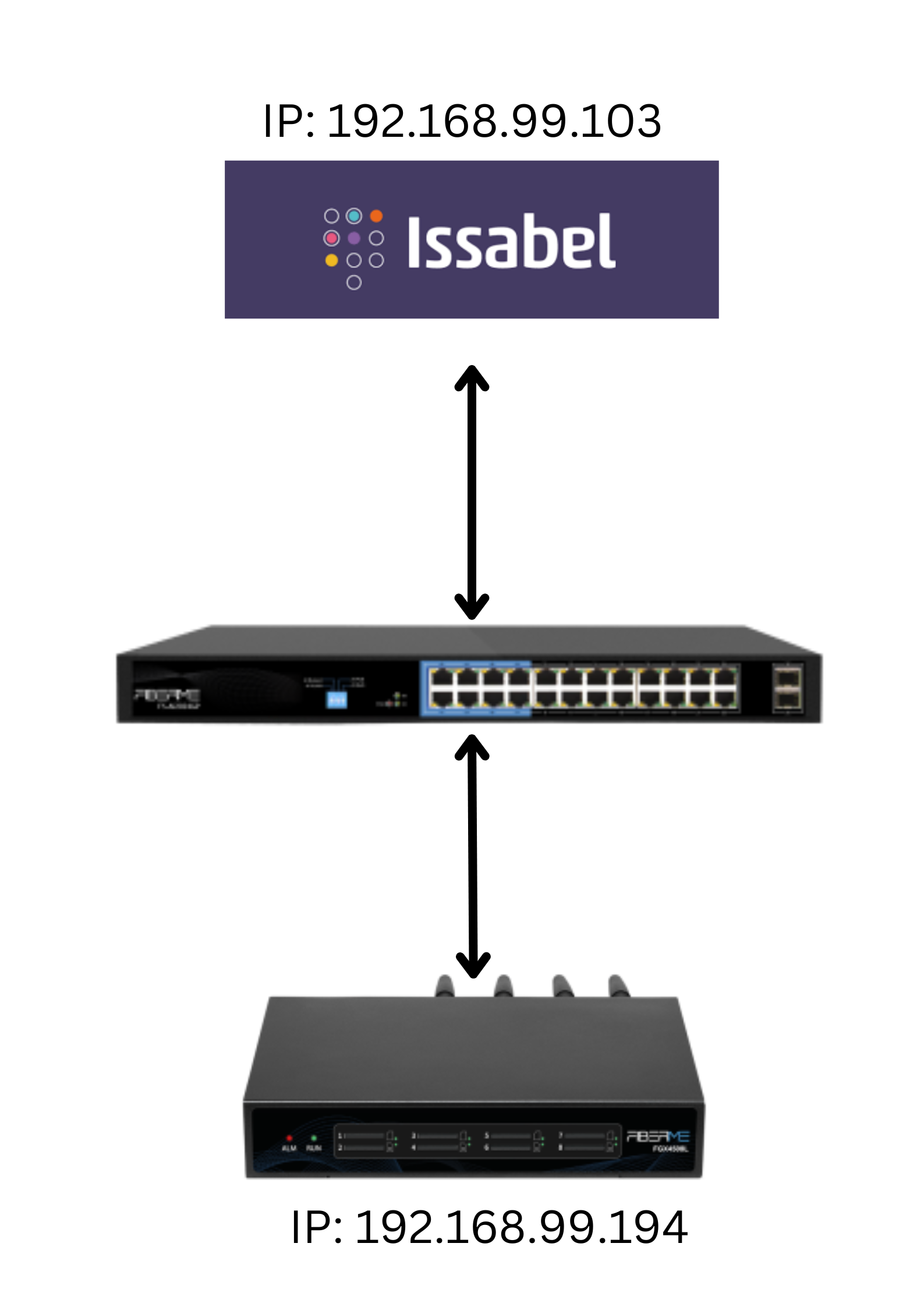
In Issabel#
Configure the SIP Trunk#
To establish a connection between Issabel and the FGX4508G GSM Gateway, you need to create a SIP trunk.
Navigate to PBX → PBX Configuration → Trunks.
Add SIP Trunk Click on Add SIP Trunk to configure a new trunk.
Trunk Name: FGX4508G (as the trunk name)
Add the following details under PEER Details :
type=peer
qualify=yes
host= ( GSM Gateway IP Address )
disallow=all
allow=ulaw
Submit Changes
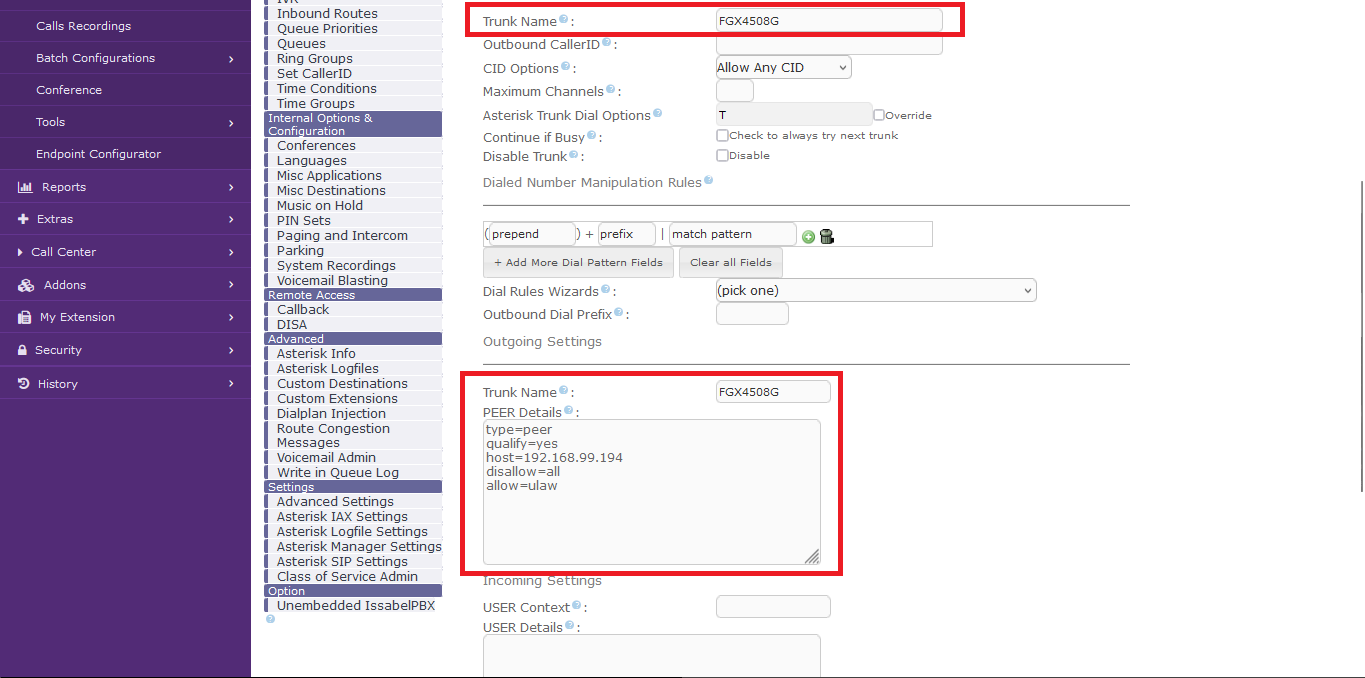
Configure Outbound Route#
Navigate to PBX → PBX Configuration → Outbound Routes.
Add Outbound Route:
Click on Add Route to create a new outbound route.
Route Name: Enter a name for the route, such as FGX4508G-Outbound.
Dial Patterns: Set the Dial Pattern to define which calls will be routed through the FGX4508G GSM Gateway. You can add specific patterns for local, national, or international calls, depending on your needs.
Trunk Selection: In the Trunk Sequence for Matched Routes section, select the previously created FGX4508G trunk.
click Submit Changes
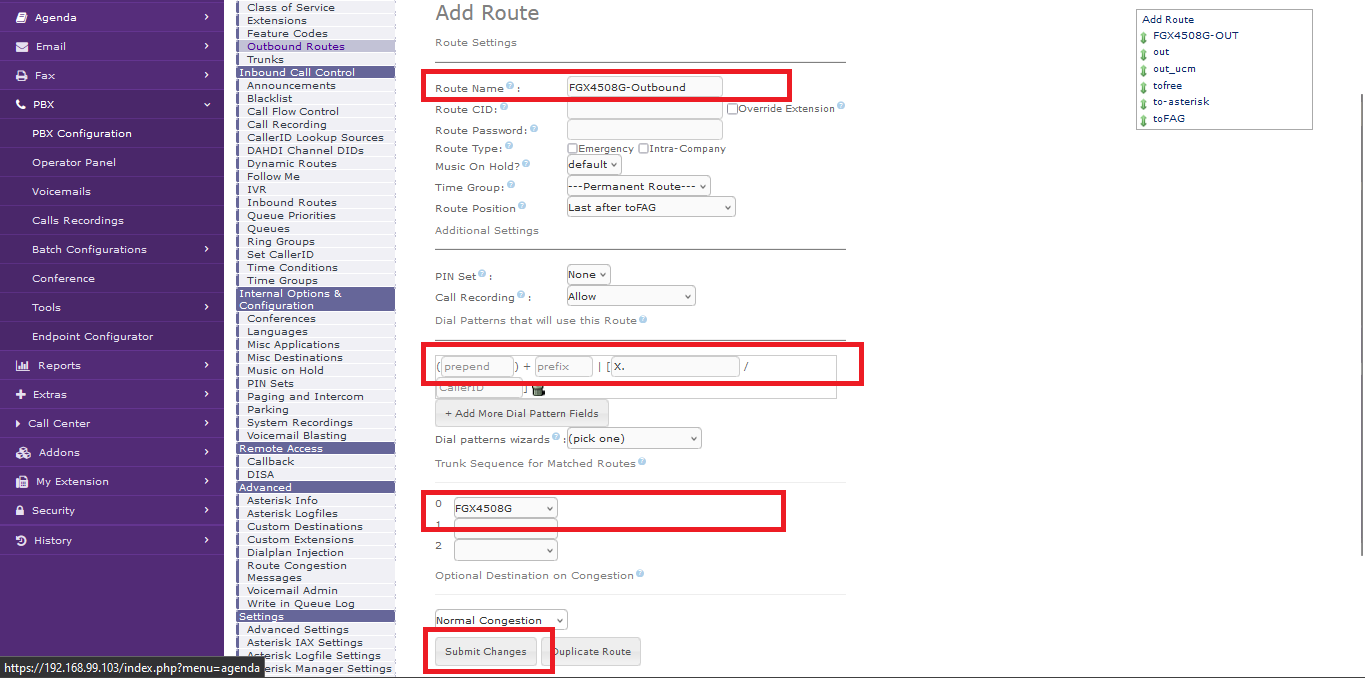
Configure Inbound Calls#
To receive calls via the FGX4508G GSM Gateway, you need to configure an inbound route in Issabel.
Navigate to PBX → PBX Configuration → Inbound Routes.
Add Incoming Route:
Click on Add Incoming Route to create a new inbound route.
Description: Enter a name for the route, such as FGX4508G-Inbound.
Set DID Number: Leave the DID Number field blank to receive calls from any GSM number, or enter a specific DID number if you are using one in this case we will set it to (8888)
Set Destination: Select the destination to route incoming calls, such as a specific extension, a ring group, or a voicemail box.
Submit Changes
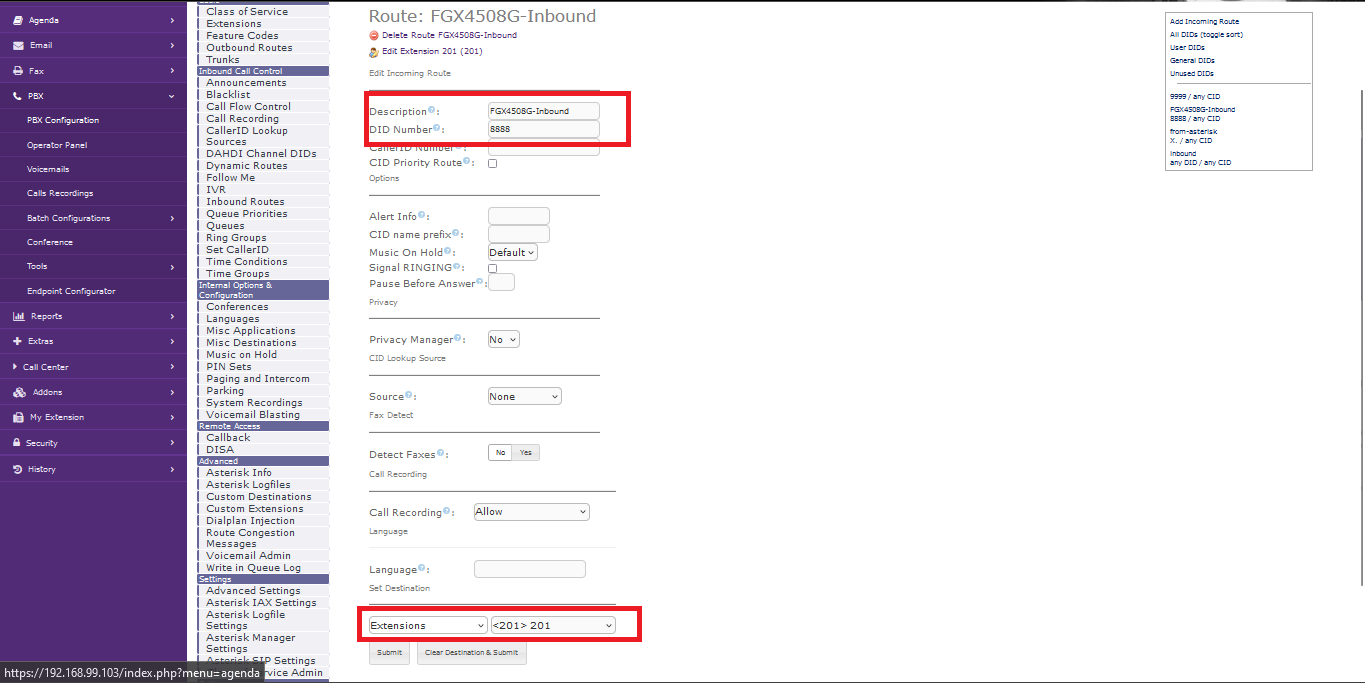
In FGX4508G#
Configure the SIP Endpoint#
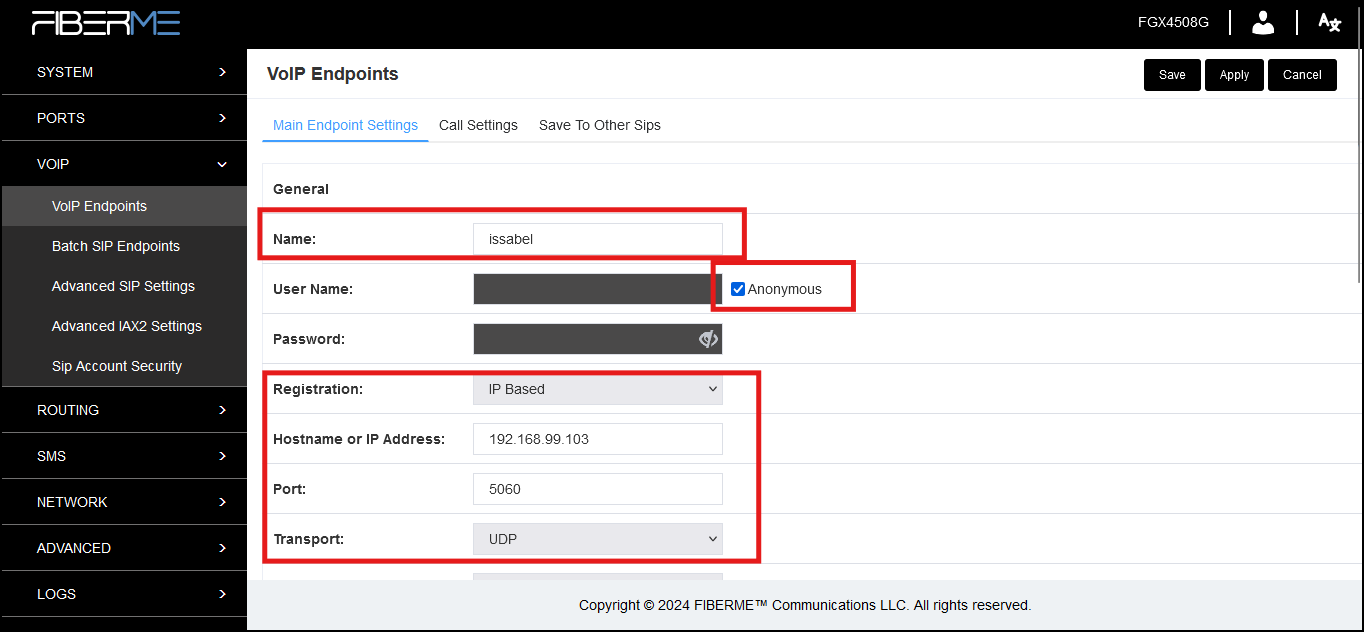
Navigate to VOIP -> VOIP Endpoint
add new SIP Endpoint
Name: Issabel
Enable Anonymous
Registration: IP Based
Hostname or IP Address: 192.168.99.103 IP-issabel
Port: 5060
Transport: UDP
Configure Outbound Call Routing#
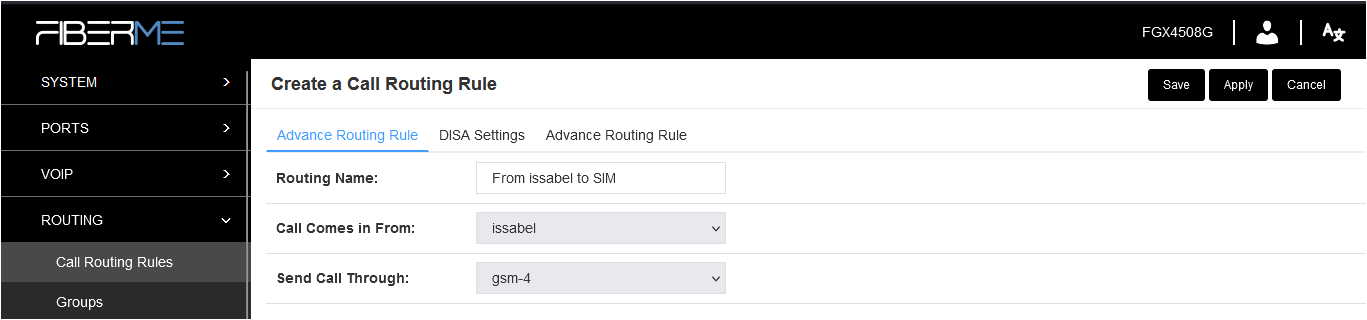
Navigate to Routing -> Call Routing Rules
Add New Call Routing Rule
Routing Name: From Issabel TO SIM
Call Comes in From: Issabel
Send Call Through: GSM-4
Navigate to advanced
Caller_Dial_pattern : Match Pattern X.

Configure Inbound Call Routing#
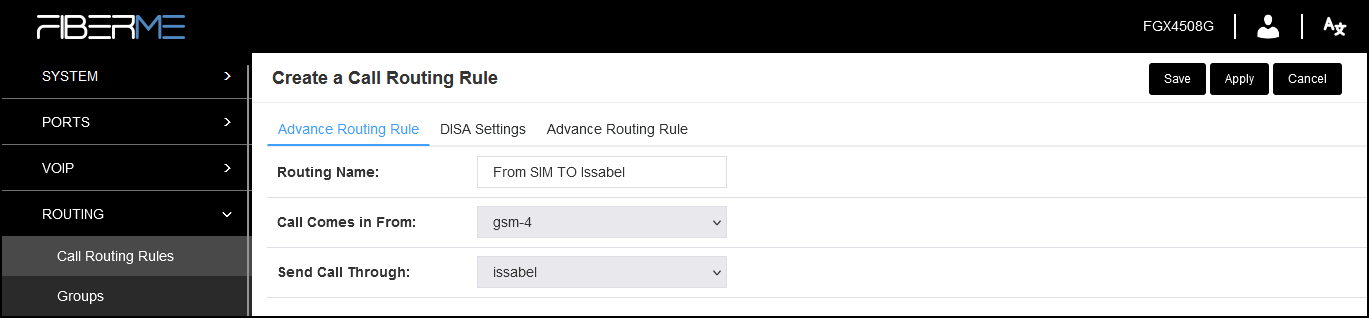
Navigate to Routing -> Call Routing Rules
Add New Call Routing Rule
Routing Name: From SIM TO Issabel
Call Comes in From: GSM-4
Send Call Through: Issabel
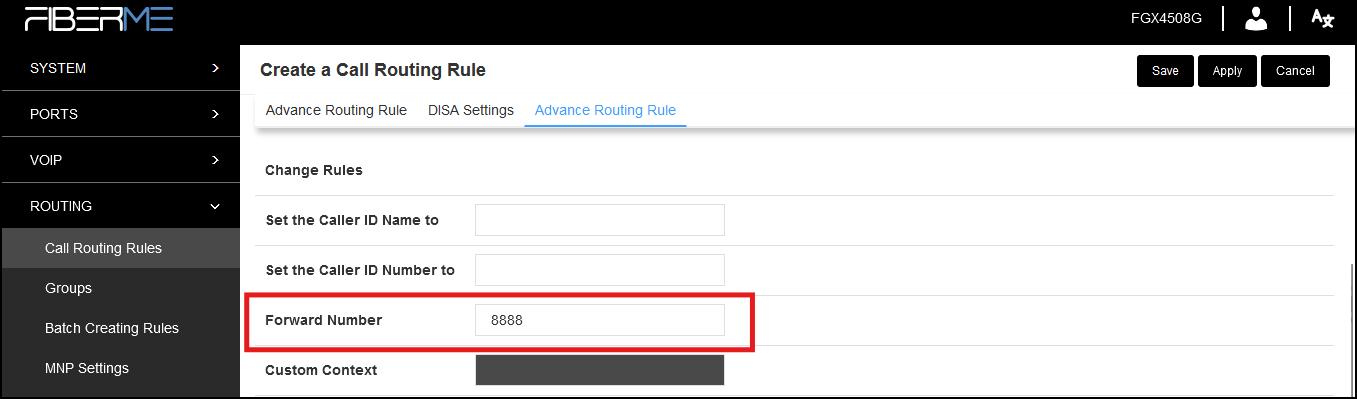
Navigate to advanced
Forward Number : 8888 This will forward the call to the destination with the number 8888 configured in Issabel (for example, an extension, ring group, etc.).
Still stuck?
FIBERME support can look at your setup with you. Certified Partners can also ask in the FIBERME Community, and anyone can learn the systems step by step in the free courses of FIBERME Academy.