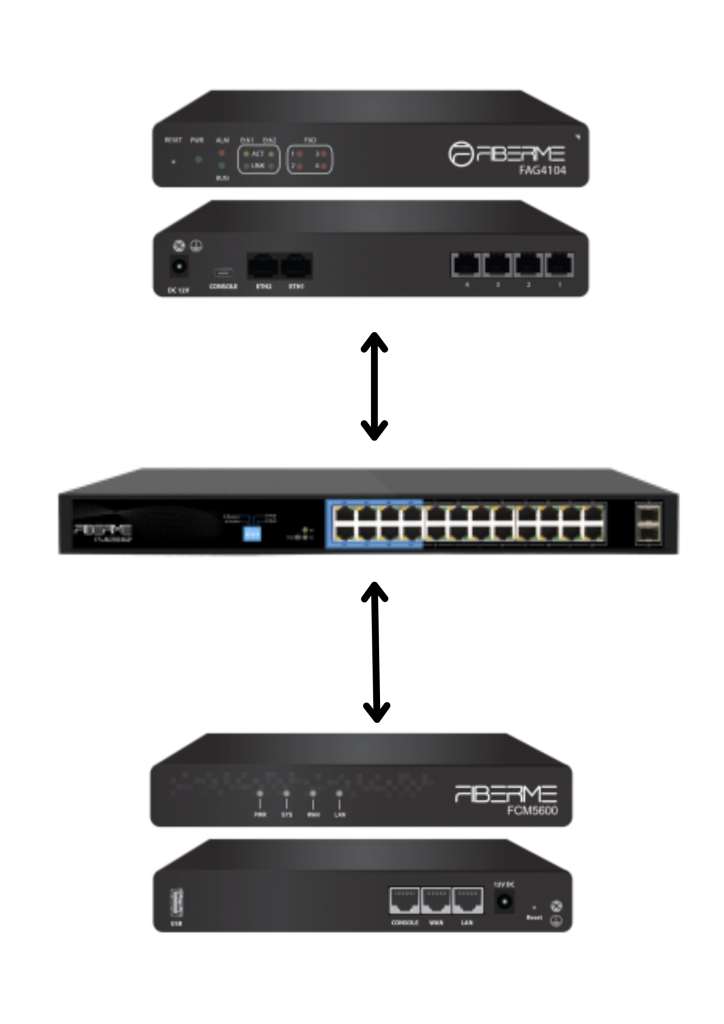
To establish connectivity between the FCM5600 and FAG410X, configure a SIP trunk that allows internal extensions to make and receive calls through external PSTN lines, ensuring seamless communication between the IP-PBX and the gateway.
IPPBX
Model: FCM5600
IP: 192.168.99.250
GATEWAY
Model: FAG410X
Ip: 192.168.99.239
TOPOLOGY #
On FCM5600 (IP-PBX) #
Create SIP Trunk #
Navigate to PBX Settings → Extensions/Trunks → Trunks
This is where all internal and external lines of the PBX are managed. You go here to add a new trunk connecting the PBX to the Gateway.
Navigate to Add
Select to create a new trunk so the PBX can communicate with the Gateway.
– Make Type “Client mode”
The PBX will act as a SIP client connecting to the Gateway, which acts as the SIP server.
– Disable “Authentication”
No username or password is required for this connection. The PBX can connect directly to the Gateway.
– Server Address: Enter the IP of FAG410X (192.168.X.X)
This is the IP address of the Gateway that the PBX uses to send and receive calls.
– Port: 5060
The default SIP port. All signaling and media traffic will pass through this port.
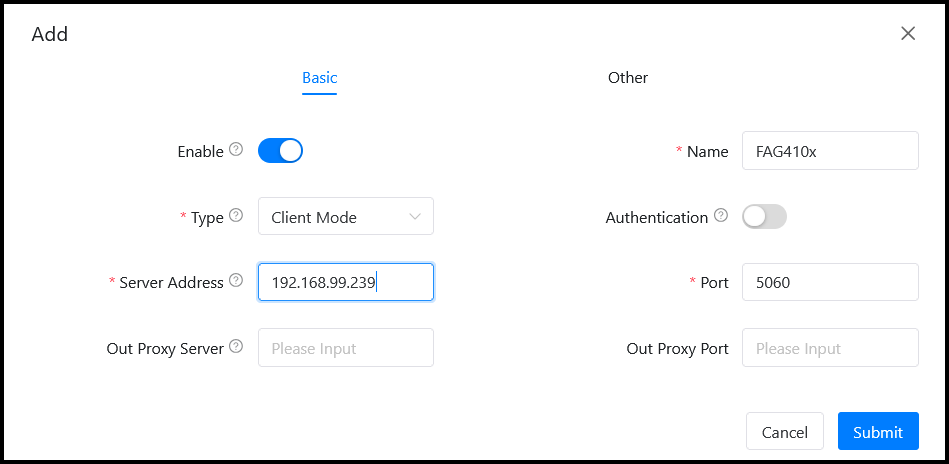
– Click on Submit. Then, apply changes
Configure Outbound Routes on FCM5600 #
– Navigate to PBX Settings → Outbound Control → Dial Rules
This is where you define how outgoing calls are handled and which trunks they use.
– Press on + to add a new rule
Adds a new dialing rule for outgoing calls.
– In the Dial Pattern field: X.
The pattern “X.” matches any number dialed, allowing all outbound calls to go through this rule.
– Available Trunks: Select trunk FAG410X
Specifies that calls matching this rule should be routed through the FAG410X trunk.
– Submit
Saves the new outbound routing rule so the PBX uses it for outgoing calls.
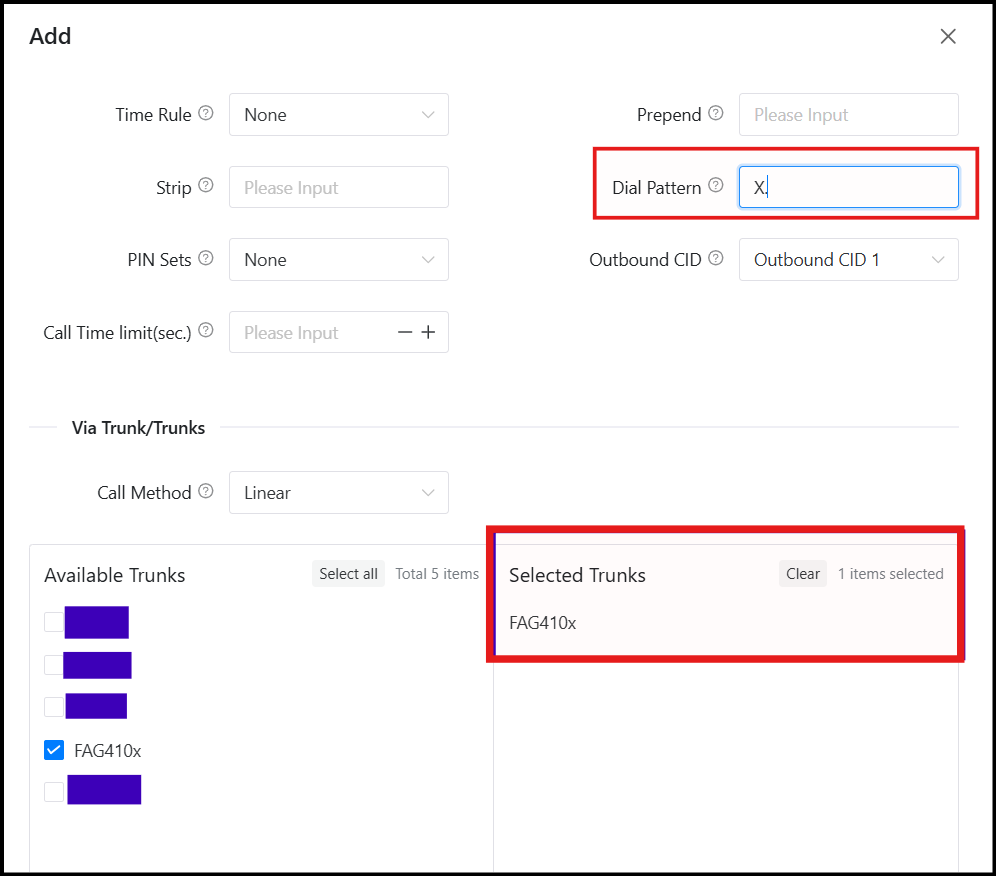
Please be sure that all extensions in IPPBX can use this dial rule.
Configure Inbound Routes on FCM5600 #
– Navigate to PBX Settings → Inbound Control → CID/DID Routing
This is where incoming calls are managed and directed to the correct destination on the PBX.
– Add new rule
Creates a new routing rule for incoming calls.
– DID Number: 7777 (This number will be configured in FAG410X as the inbound number)
The DID number identifies the incoming line from the gateway that this rule applies to.
– Destination Type: IVR (or any destination you need)
Defines where the call should go, such as an IVR menu, a specific extension, or a queue.
– Inbound Destination
Select the exact endpoint (extension, IVR, or queue) that will receive the incoming call.
– Click Submit, then Apply Changes
Saves the inbound route configuration and activates it, allowing the PBX to handle calls to this DID.

On FAG410X #
SIP Registration #
– Navigate to VoIP → SIP
This is where the SIP client settings for the gateway are configured.
– Registrar IP Address: Enter the IP address of the FCM5600
Specifies the PBX IP that the FAG410X will register to, allowing call routing between the gateway and PBX.
– Registrar Port: 5060
Sets the SIP signaling port used to communicate with the PBX. 5060 is the standard SIP port for UDP/TCP traffic.

Configure FXO Port on FAG410X #
– Navigate to Port → FXO
This section manages the FXO ports, which connect the gateway to the PSTN lines.
– Press Modify on the FXO port you will use
Opens the configuration for the selected FXO port, where you will assign the DID number that corresponds to this PSTN line. This DID will be used to route incoming calls to the FCM5600 PBX.

– Change Connection Method to “Static Binding for outgoing/incoming call”
Sets the FXO port to always use the same line for both outgoing and incoming calls, ensuring predictable routing.
– Write Number 7777
Assigns the DID number that matches the inbound route configured on the FCM5600, so incoming calls on this FXO line are correctly routed to the PBX.

Create Port Group on FAG410X #
Navigate to Port → Port Group
This section allows you to group multiple ports for easier management and call routing.
Add new group
Creates a new port group to organize FXO ports.

Select the FXO port you will use
Assigns the previously configured FXO port to this group, enabling it to handle calls according to the group settings.

FAG410X CALL Routing #
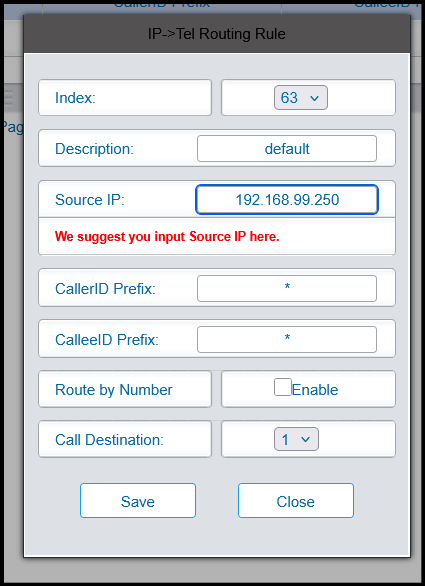
FAG410X Call Routing – Configure IP-to-TEL
– Navigate to Route IP→TEL
This section defines how calls from the PBX (IP) are routed to the PSTN lines (TEL).
– Add New
Creates a new routing rule for calls from the PBX to the FXO ports.

– Source IP: FCM5600 IP
Specifies that calls originating from the FCM5600 PBX will use this route.
– CallerID Prefix: *
Matches all caller IDs from the PBX, allowing any outgoing number to use this route.
– CalleeID Prefix: *
Matches all dialed numbers, ensuring that all outgoing calls from the PBX are routed through this rule.
– Call Destination: Select the Port Group you will use
Directs the matched calls to the FXO port group you created, so the calls exit through the PSTN line connected to the gateway.
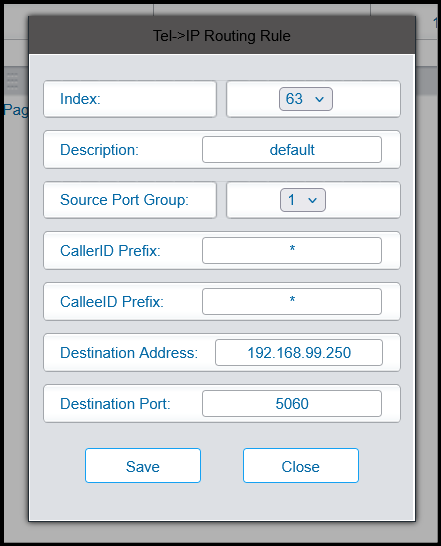
FAG410X Call Routing – Configure TEL-to-IP
– Navigate to Route → TEL→IP and press “Add New”
This section defines how incoming calls from the PSTN (FXO ports) are routed to the PBX (IP).

– Source Port Group: Select the Port Group you will use
Specifies which FXO ports (PSTN lines) the incoming calls will come from.
– CallerID Prefix: *
Matches all incoming caller IDs, allowing any external number to use this route.
– CalleeID Prefix: *
Matches all dialed numbers, ensuring that all incoming calls are routed to the PBX.
– Destination Address: FCM5600 IP
Directs the incoming calls to the IP address of the FCM5600 PBX, allowing internal extensions to receive the calls.