
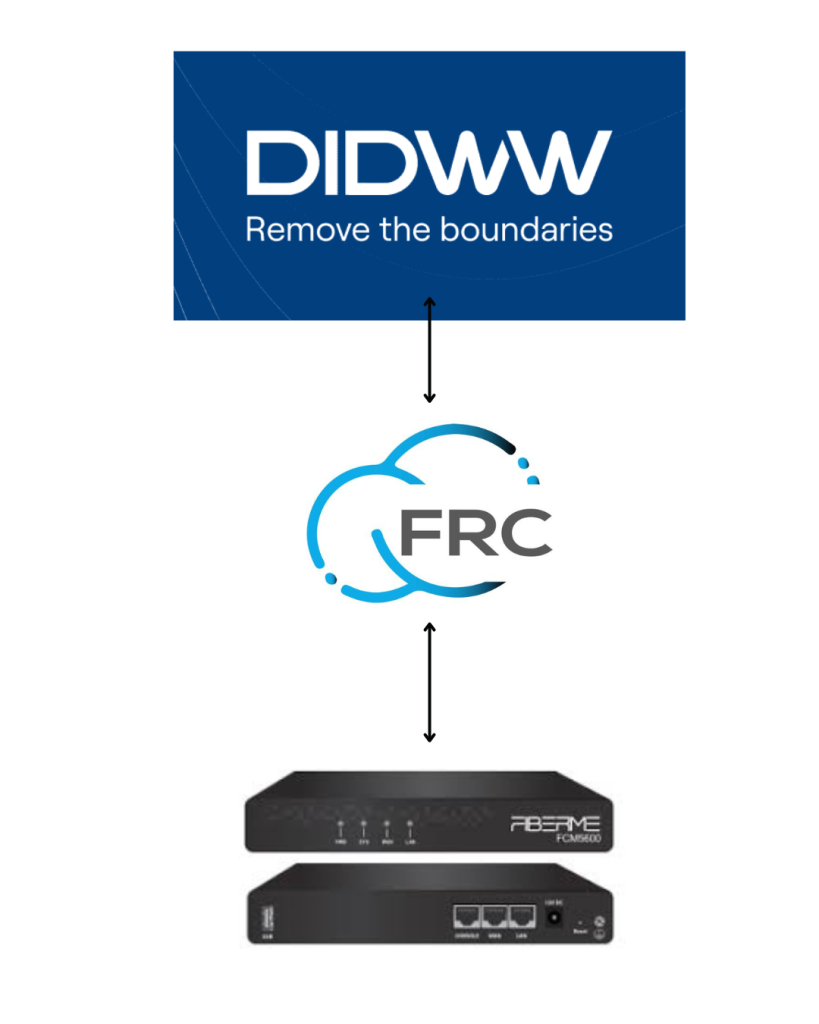
To establish cloud-based communication between DIDWW and FIBERME, you can use numbers from any country and connect them to your FIBERME IP-PBX (FCM5600). The extensions can be accessed and used remotely from anywhere in the world.
TOPOLOGY #
IN DIDWW #
Log in to your DIDWW account to begin the configuration process.
Navigate to Phone Numbers → My Numbers, where you can browse and purchase the required DID number(s) based on your preferred country and service needs.
Ensure that at least one DID number is successfully purchased and active before proceeding with any IP-PBX integration. This step is essential, as the DID number will be used for call routing and connectivity between DIDWW and your PBX system.

Outbound Trunk Configuration
Navigate to Voice → Outbound Trunks within your DIDWW account to begin configuring a new outbound trunk.
– Friendly Name:
Enter a descriptive name for the trunk based on your setup requirements (for example: Outbound Trunk, FIBERME Outbound, or any custom name that helps you easily identify it later).
– Authentication Method:
Select Credentials & IP-Based. This method ensures secure communication by combining both authentication credentials and IP validation.
– Allowed SIP IP Address:
Enter the public IP address of your cloud server. To obtain this, perform a ping on your cloud domain and copy the resolved IP address. This step ensures that only your server is authorized to send SIP signaling.
– Allowed RTP IP Address:
Enter the same public IP address of your cloud server used above. This allows proper routing of RTP (audio) traffic between DIDWW and your IP-PBX, ensuring stable call media transmission.
Make sure all IP addresses are entered correctly, as any mismatch may result in call failures or one-way audio issues.
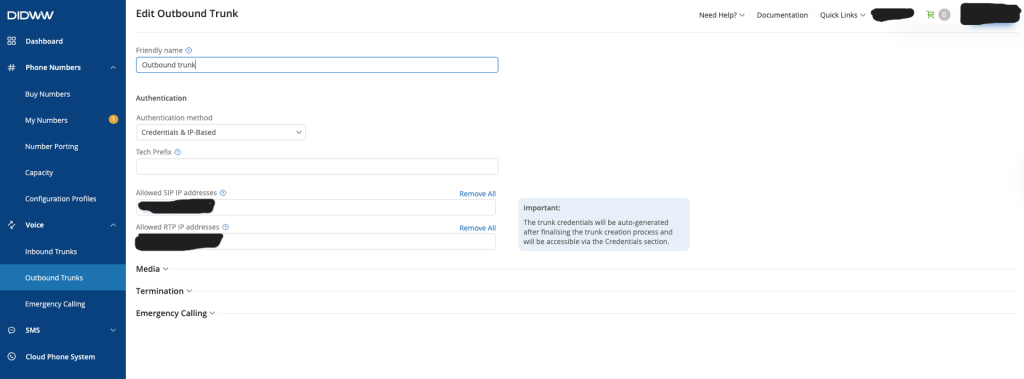
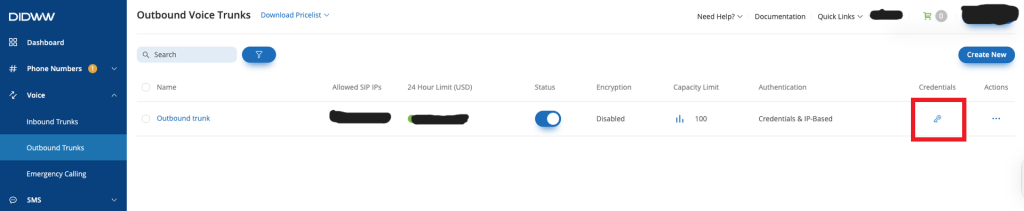
– Click Save to apply configuration changes.
– Navigate to the Key (🔑) icon to access and manage your authentication credentials .
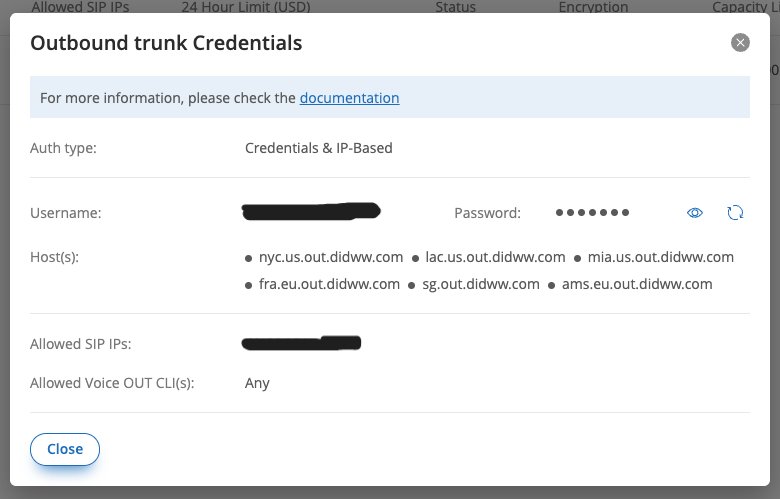
Navigate to the Outbound Trunk Credentials section.
- Username:
Copy the provided username. - Password:
Copy the provided password.
These credentials will be required later when configuring the SIP trunk on your IP-PBX. Ensure they are copied accurately to avoid authentication issues.
Inbound Configuration
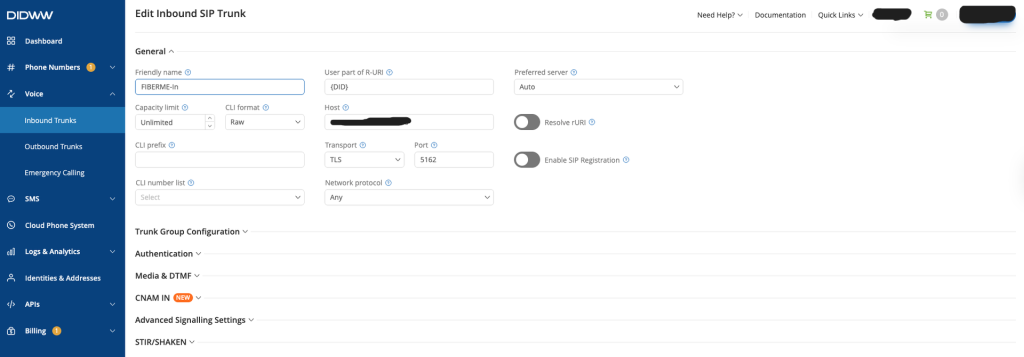
Navigate to Voice → Inbound to create a new inbound routing rule.
– Friendly Name:
Enter a clear and descriptive name (e.g., FIBERME in) to easily identify this inbound connection.
– Use part of Request-URI (R-URI): Set to {DID}
– Host: Enter your FIBERME FRC domain (e.g., yourmacaddress.fiberme.cloud).
– Transport: Select TLS to enable secure SIP signaling between DIDWW and your FIBERME system.
– Port: Set the port to 5162, as required by the FIBERME cloud configuration.
Make sure all values are configured correctly to ensure proper inbound call routing and secure connectivity.
Nevigate to Phone number → My number
Edit number you need
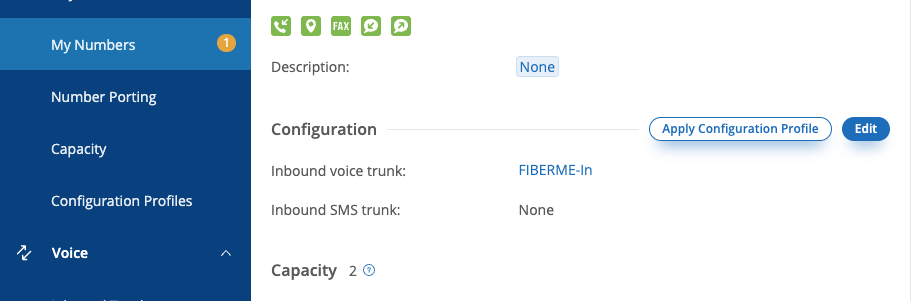
Inbound Voice Trunk:
Select FIBERME-in from the list of available inbound trunks.
Submit
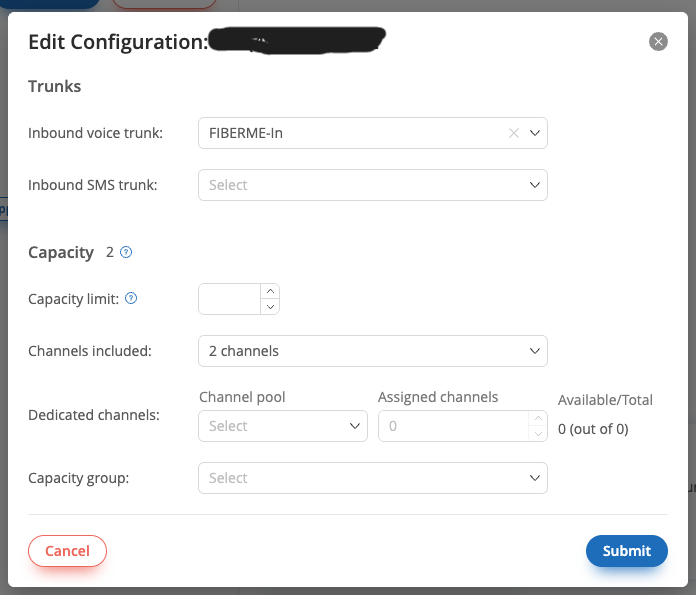
Before proceeding to the FCM5600 configuration, ensure that all previous steps have been completed correctly.
IN FCM5600 #
Log in to your FCM5600 web interface to begin the SIP trunk setup.
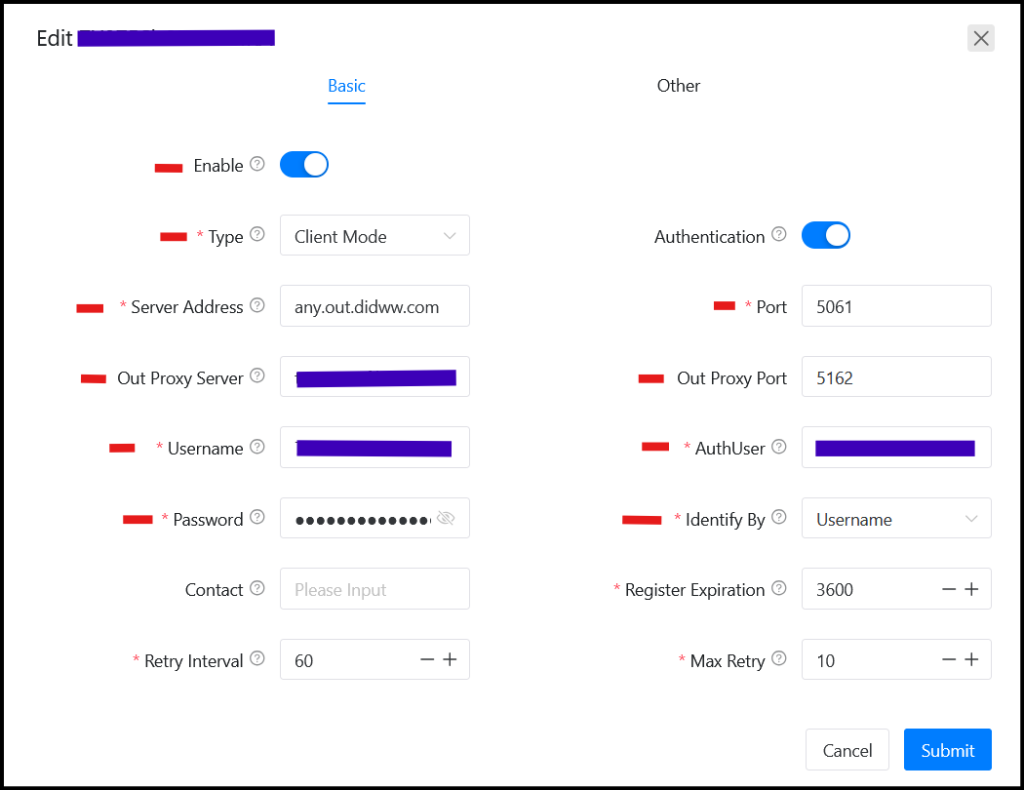
Navigate to PBX Settings → Extension/Trunk → Trunk, then click Add New to create a new trunk.
– Type: Set to Client Mode.
– Server Address: Enter any.out.didww.com.
This value is obtained from the trunk credentials. The “any” host is recommended as it provides the most flexible and comprehensive routing among the available options.
– Port:
Set to 5061 to use secure SIP communication.
– Outbound Proxy Server:
Enter your FIBERME FRC domain (e.g., yourmacaddress.fiberme.cloud).
– Outbound Proxy Port:
Set to 5162.
– Username:
Enter the username provided in the DIDWW trunk credentials.
– AuthUser:
Enter the same username from the trunk credentials.
– Password:
Enter the password provided in the trunk credentials.
– Identify By:
Set to Username to ensure proper authentication with DIDWW.
Ensure all values are entered correctly, then proceed to save the configuration before moving to the next step.
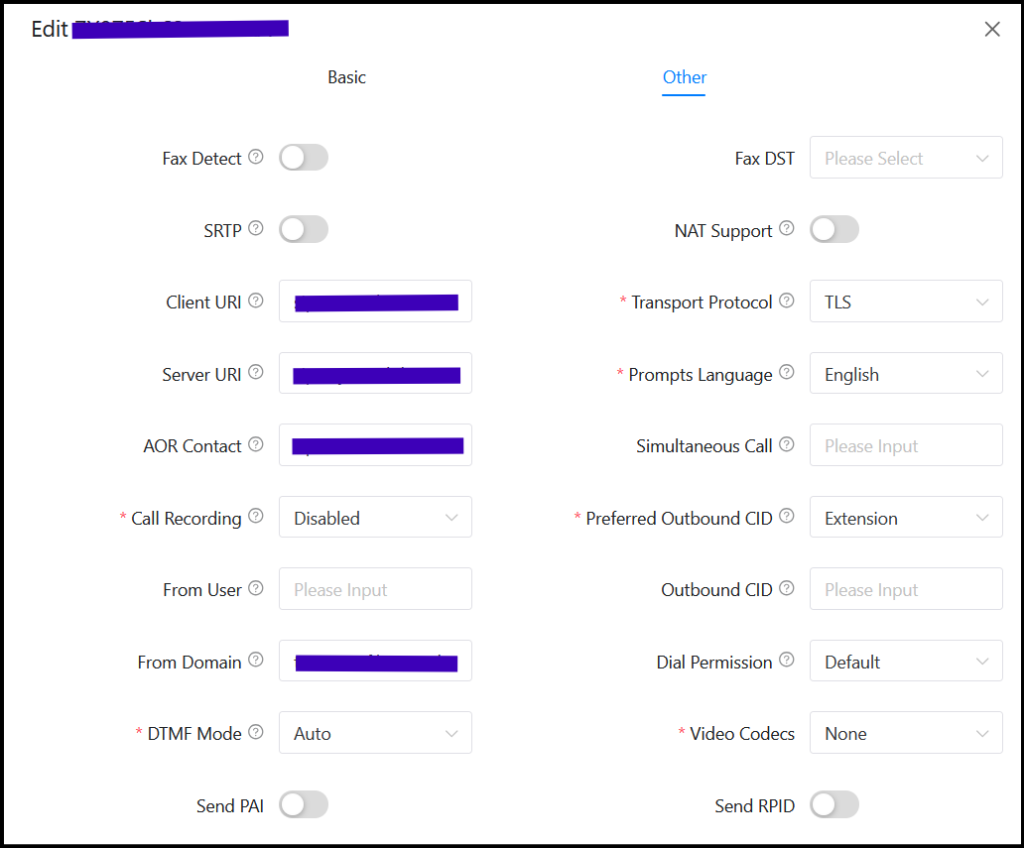
Other SIP Parameters
Continue configuring the trunk by setting the following SIP parameters:
– Client URI: Configure using the following format:sip:username@yourmacaddress.fiberme.cloud:5162
Replace username with your DIDWW trunk username and yourmacaddress.fiberme.cloud with your FRC domain.
– Server URI: Configure using the following format:sip:DIDWW-domain:5061\;transport=tls
Replace DIDWW-domain with the appropriate DIDWW server (e.g., any.out.didww.com).
– AOR Contact: Configure using the following format:sip:username@DIDWW-domain:5061\;transport=tls
Use the same username and DIDWW domain as configured above.
– Transport Protocol:
Set to TLS to ensure secure SIP communication.
– From Domain:
Enter your FRC domain (e.g., yourmacaddress.fiberme.cloud).
Ensure all parameters are entered exactly as shown, as incorrect formatting may lead to registration or call routing issues.
Final Step #
After completing the configuration, verify that the trunk status is Registered on the FCM5600.
Once the trunk is successfully registered, you can proceed with configuring both Inbound and Outbound routing to handle incoming and outgoing calls.



